

- Introduction
- Series Summary
- The Three Pillars of Placement Logic
- Cluster Headroom as a Fail-Safe
- Technical Purpose and Scenarios
- Implementation Steps: Configuring Your Operational Model
- Conclusion
Introduction
Operational intent is the configuration logic that drives the placement engine’s decision-making process, defining what “optimized” means for a specific data center. While the architecture enables the physical movement of virtual machines, the operational intent serves as the brain, setting the utilization objectives and risk tolerances that the engine must follow. By precisely configuring these intents, administrators transition from reactive resource management to a proactive, self-driving operational model.
Series Summary
- Part 1: Architecture and Logic of VCF 9.0 Workload Placement: Understanding the integration between VCF Operations and vSphere DRS.
https://puneetsharma.blog/2026/01/03/part-1-architecture-and-logic-of-vcf-9-0-workload-placement/ - Part 2: (Current) Mastering Operational Intents to prioritize performance balancing versus hardware consolidation.
https://puneetsharma.blog/2026/01/15/part-2-defining-vcf-9-0-operational-intent-for-capacity-management/ - Part 3: Enforcing VCF 9.0 Governance through Business Intents
Utilizing Business Intents and Tagging for automated license enforcement and compliance.
https://puneetsharma.blog/2026/02/20/part-3-enforcing-vcf-9-0-governance-through-business-intents/ - Part 4: The VCF 9.0 Execution Cycle: Analyzing and Implementing Optimization
Managing the Action-Recommendation Loop via manual, scheduled, and automated execution modes. - Part 5: VCF 9.0 VM Lifecycle Optimization: Rightsizing Strategies
Precision resource management through Rightsizing oversized and undersized VMs.
The Three Pillars of Placement Logic
The VCF Workload Placement engine operates under three core operational modes. Choosing between them requires an understanding of how they affect the underlying statistical models used for forecasting.
Balance Mode (Performance & Availability Focus)
- Technical Logic: This mode spreads virtual machines (VMs) and storage as evenly as possible across all available clusters in the data center.
- Engine Behavior: The engine calculates the mean utilization across the data center and identifies clusters trending toward “hotspots.” It proactively triggers migrations to “cooler” clusters, even if no immediate contention exists, to maintain a uniform resource profile.
- Best Use Case: Mission-critical production environments where maintaining maximum performance overhead for every VM is more important than hardware density.
Consolidate Mode (Hardware & Cost Efficiency Focus)
- Technical Logic: This mode aggregates workloads into the minimum number of clusters required to meet current performance thresholds.
- Engine Behavior: The engine shifts workloads away from secondary clusters to fill primary clusters to their maximum safe capacity based on defined policies.
- Strategic Outcome: By maximizing VM density, this mode identifies underutilized physical hardware that can be powered off or repurposed to reduce licensing and power costs.
- Best Use Case: Test, development, or lab environments where hardware efficiency and operational expense (OpEx) reduction are the primary goals.
Moderate Mode (Default / Operational Stability Focus)
- Technical Logic: Primarily focuses on minimizing workload contention without the overhead of aggressive rebalancing.
- Engine Behavior: The engine only triggers moves when a performance degradation or physical resource shortage is imminent.
- Strategic Outcome: This minimizes “vMotion noise” and ensures infrastructure stability, moving workloads only when absolutely necessary to maintain the “green state” defined in the policy.
Cluster Headroom as a Fail-Safe
A critical but often overlooked component of operational intent is the Cluster Headroom setting. This serves as a restrictive physical buffer of free CPU, memory, and disk space that the placement engine must respect.
The Restrictive Logic
Cluster Headroom acts as a hard ceiling on top of your existing monitoring policies. For example, if your VCF policy allows for 90% utilization before alerting, but your Cluster Headroom is set to 20%, the Workload Placement engine will treat the cluster as “full” at 80% utilization.
Technical Purpose and Scenarios
- HA Recovery: Ensuring that if an ESXi host fails, there is enough “empty room” in the remaining hosts to instantly restart the failed VMs without causing a secondary contention event.
- Burst Absorption: Providing a safety net for workloads with high periodic peaks (e.g., end-of-month processing or daily backups) that might otherwise overwhelm a cluster.
- Future Growth: Administrators can use headroom to “soft-reserve” space for planned project expansions without committing the VMs immediately.
Implementation Steps: Configuring Your Operational Model
To technically configure operational intent within VCF Operations, follow this detailed workflow:
Step 1: Environmental Assessment
Capture 1: –
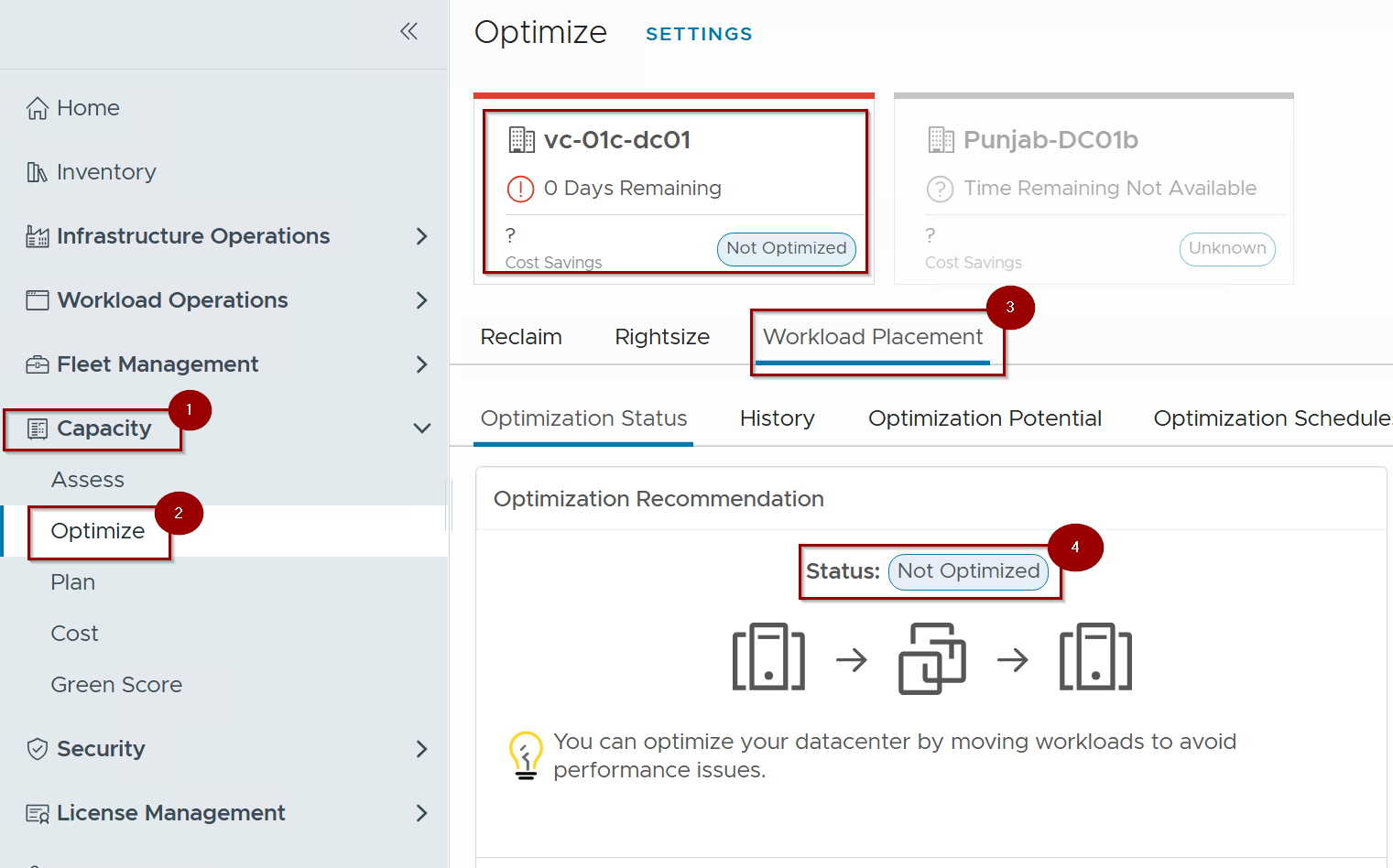
- Log in to the VCF Operations console and Navigate to Capacity.
- Click on Optimize .
- Click on Workload Placement under the selected datacenter.
- Review the data center carousel. Any data center currently breaching its intent will be marked as “Not Optimized”.
Step 2: Intent Selection and Buffer Configuration
Capture 2: –

5. Select the target Data Center.
6. Click Edit on the Operational Intent card.
Capture 3: –
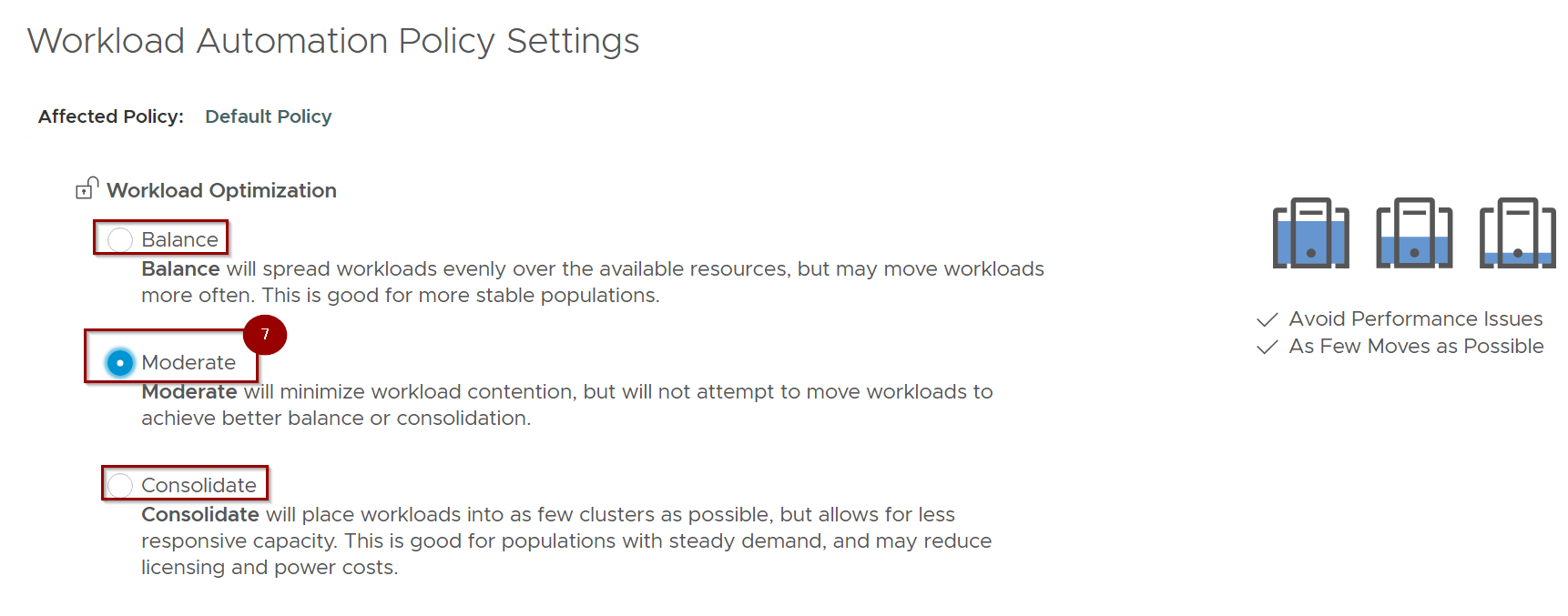
7. Select your placement setting: Balance, Consolidate, or Moderate.
Note: – In this blog we have selected the Moderate placement setting.
Capture 4: –

8. Define your Cluster Headroom. For production clusters, 15-20% is a common technical standard; for development clusters, this can often be lowered to 5-10%.
Step 3: Execution and Verification
Capture 5: –

9. Click Save. The system will perform an immediate compatibility check against current telemetry.
Capture 6: –

10. Click on Yes.
Note:- If the current policy applies across multiple locations. If utilized in another datacenter, clicking to apply changes will affect that datacenter as well.
Capture 7: –
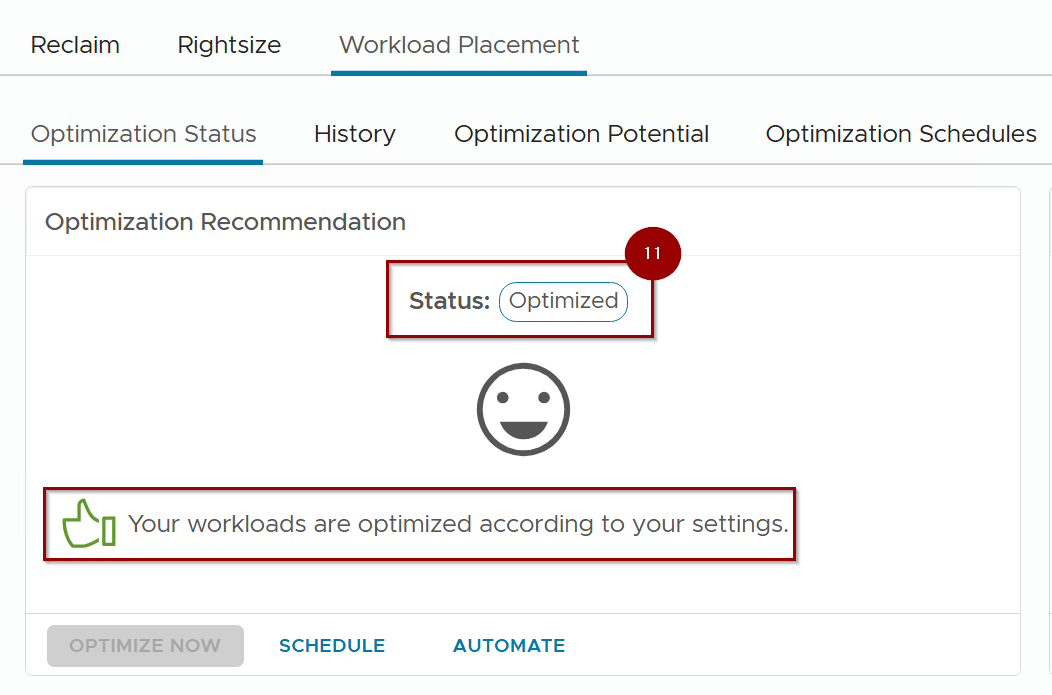
11. Status is optimized.
Critical Note: – If the datacenter is still not optimized after the current steps, we will need to follow the capture from 8 until 12 for the necessary remediations.
Capture 8: –

12. If remediation is required, click Optimize Now.
Capture 9: –
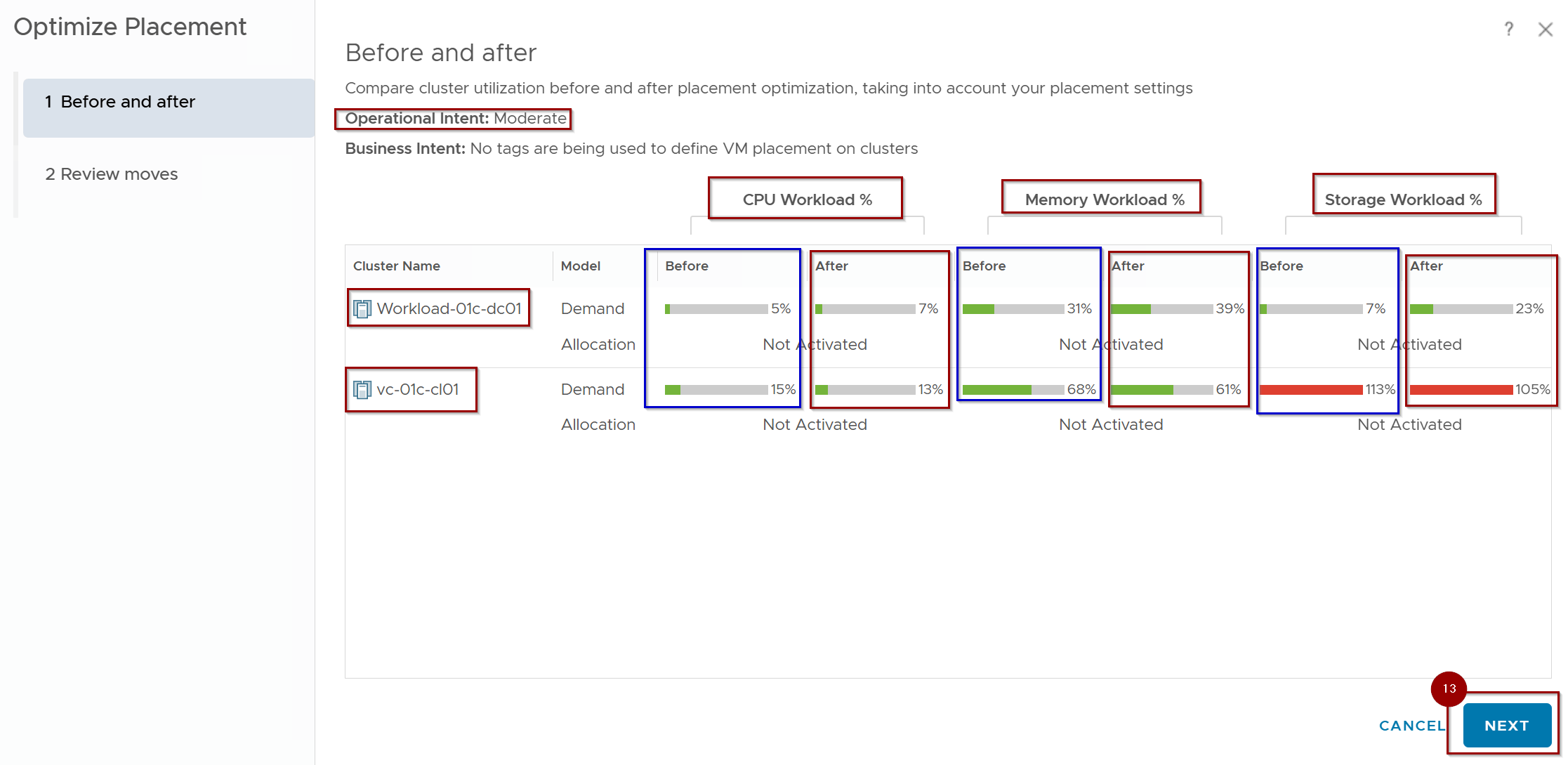
13. Review the Plan: The wizard will show the “Before” and “Projected After” utilization percentages across all three resource dimensions (CPU, Memory, Disk). Click on Next.
Capture 10.
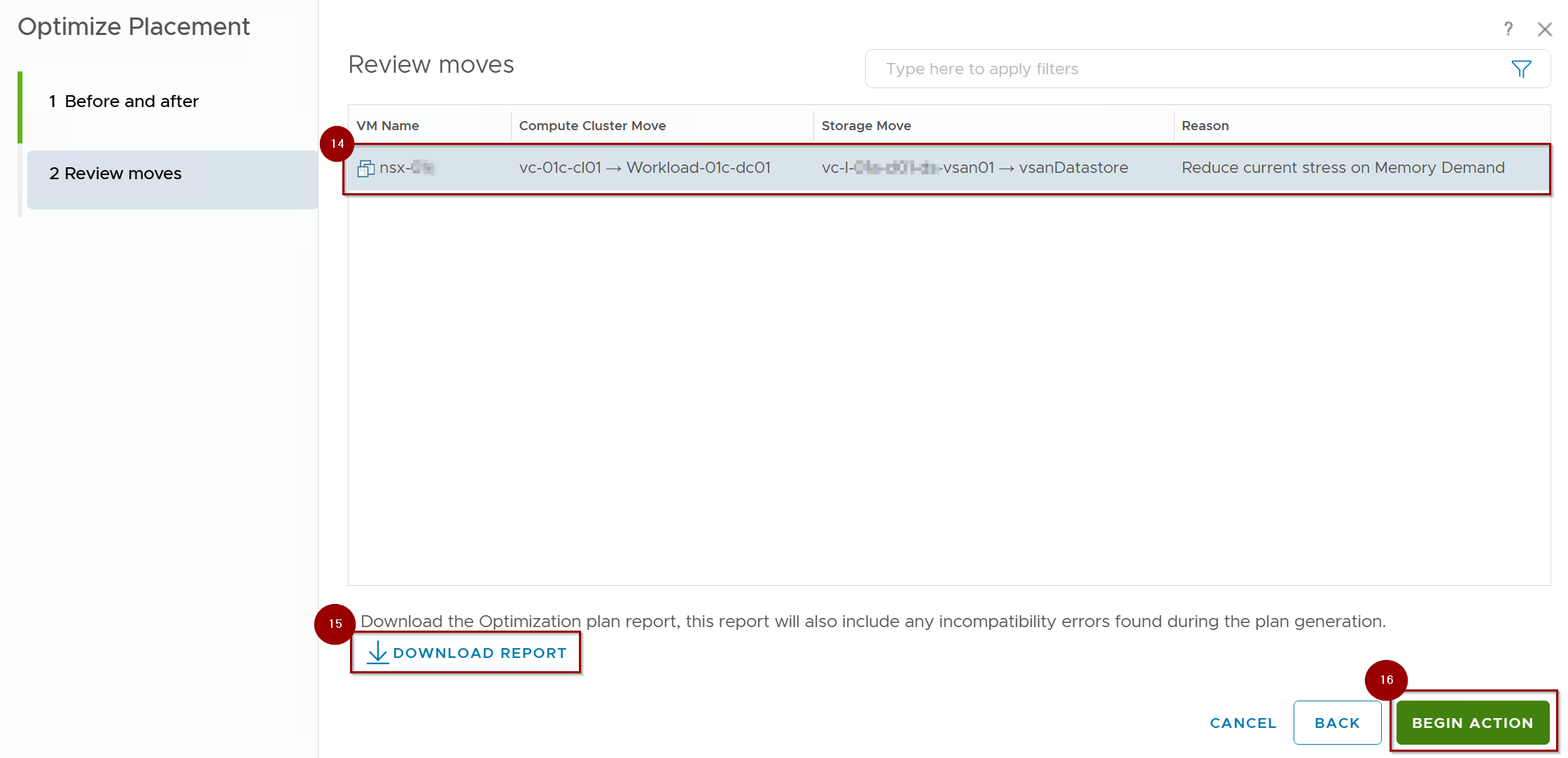
14. We can see the VM which is auto planned for migrate to another Cluster.
15. We can download the report in CSV or XLS format.
16.Begin Action: Once confirmed, VCF Operations issues the migration requests.
Capture 11: –

17. Click OK.
Note: – Monitor the Recent Tasks pane in vCenter to see the vMotion tasks initiated by the orchestration layer.
Capture 12: –
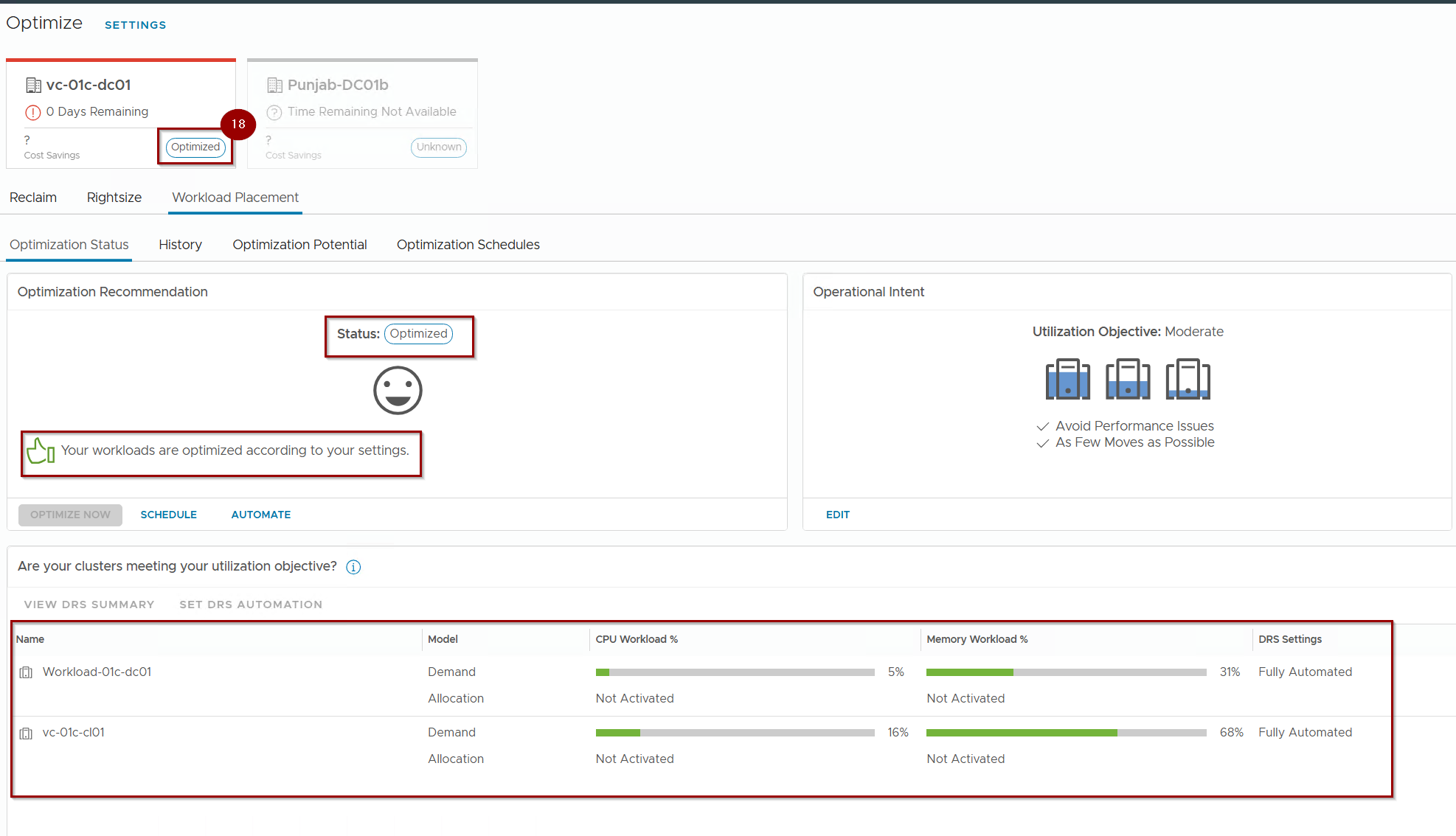
18. Datacenter is fully Optimized.
Conclusion
Mastering operational intents allows VCF administrators to move beyond manual VM management and define the “desired state” of their entire data center. Whether you are prioritizing performance via Balance mode or aggressively seeking cost savings via Consolidate mode, these settings ensure the infrastructure automatically adjusts to meet technical and fiscal mandates.
By correctly tuning Cluster Headroom, you provide the necessary safety net to ensure that optimization never comes at the cost of availability.
In Part 3, we will shift from resource performance to organizational governance as we examine Business Intents and Tagging, detailing how to enforce license boundaries and compliance zones automatically.
 Puneet Sharma
Leave a comment