

- Introduction
- Section 1: Prerequisites – Laying the Foundation for Flexibility
- Section 2: Step-by-Step Deployment Guide
- Section 3: Post-Deployment Verification and Validation
- Section 4: Important Considerations and Limitations
- Conclusion
Introduction
- Thought Origin:For years, VMware Cloud Foundation (VCF) has been the gold standard for deploying software-defined data centers, offering unparalleled automation and lifecycle management. A hallmark of VCF’s design was its integrated approach: each Workload Domain (WLD) typically came bundled with its own vCenter Server, deployed and managed by SDDC Manager. While this provided robust isolation and consistent builds, it presented a challenge for organizations that wished to leverage existing, mature vCenter Server instances or consolidate their vCenter footprint.
- The Game-Changer: Enter VMware Cloud Foundation 9.0. With this release, VCF introduces a monumental and highly anticipated capability: the ability to “Import an Existing vCenter” or, more formally, deploy Workload Domains backed by an External vCenter Server. This is not just a minor update; it’s a paradigm shift that offers unprecedented flexibility, allowing you to integrate VCF into your existing vSphere ecosystem more seamlessly.
- What this blog covers:In this deep dive, we’ll explore the prerequisites, planning considerations, and a step-by-step guide to successfully deploy a VCF 9.0 Workload Domain leveraging your pre-existing external vCenter Server.
- Benefits:We’ll show you how this option, now available within the standard SDDC Manager UI workload domain creation flow (as seen in resources like the Broadcom Techdocs guide here for general VI WLD deployment), revolutionizes VCF adoption.
Section 1: Prerequisites – Laying the Foundation for Flexibility
Before you can “import” and use an external vCenter for a Workload Domain, meticulous planning and preparation are absolutely crucial. Skipping these steps can lead to significant issues.
Existing VCF 9.0 Management Domain:
Your journey begins with a healthy VCF 9.0 Management Domain. This must be:
- Version: VCF 9.0 (fully deployed, configured, operational).
- Access: SDDC Manager UI administrative access.
- Licensing: Valid VCF, vSphere, vSAN, and NSX licenses (sufficient for new WLD) applied in SDDC Manager.
Existing vCenter Server:
- Version: vCenter Server 8.0 Update 2 or later (check VCF 9.0 Interoperability Matrix for exact patch levels).
- Operational: Fully deployed, configured, and functional.
- Network Connectivity: Full bi-directional IP and DNS reachability to SDDC Manager, WLD ESXi hosts, and NSX Managers (if new NSX instance).
- SSO: Plan SSO domain integration (retain or join existing).
- Admin Access: Account with sufficient vCenter privileges for SDDC Manager operations (datacenter, cluster, host management).
- Certificates: Use valid, trusted certificates for production environments.
ESXi Hosts for New Workload Domain:
- Quantity: Minimum 04 ESXi hosts for a vSAN-enabled WLD.
- Hardware: VCG compatible (vSphere 8.0 U2+, vSAN ReadyNode if applicable).
- ESXi Version: 8.0 Update 2 or later (matching vCenter version).
- CRUCIAL CONSTRAINT: MUST be unmanaged by any vCenter Server; clean ESXi installation.
- Networking: Adequate physical NICs for Mgmt, vMotion, vSAN, NSX TEPs (e.g., 2x10GbE for vMotion/vSAN, 2x10GbE for NSX).
- vSAN Disks: Cache and Capacity devices (SSDs/NVMe); all NVMe for vSAN 8 ESA.
Network Configuration Plan:
- VLAN/Subnet Allocation: Detailed plan for Mgmt, vMotion, vSAN, NSX TEP, and Workload networks.
- IPAM: Static IP addresses for all infrastructure components.
- DNS: Functional A and PTR records for SDDC Manager, ESXi hosts, vCenter, and NSX Managers (and VIP). DNS must be resolvable from all components.
- NTP: All components synchronized to a reliable NTP source.
Software & Credentials:
- OVAs:
- vCenter Server Appliance (VCSA) 8.0 U2+ (if you are deploying the external vCenter).
- ESXi 8.0 U2+ ISO for installing on physical hosts.
- NSX 4.1+ Manager OVA (if deploying a new NSX instance for the WLD).
- Credentials: Ensure you have readily available and valid credentials for:
- SDDC Manager
adminuser. - External vCenter administrator.
- ESXi host root (or equivalent privileged) account.
- NSX admin (if integrating with an existing NSX instance)
- SDDC Manager
- Components: Here are the intricate details of the components I meticulously selected while crafting this blog. Each element plays a vital role in weaving together a compelling narrative.
Current VCF 9.0 Components detail
| Sr. No | Name | Version | Build |
| 1 | SDDC Manager | 9.0.0.0 | 24703748 |
| 2 | vCenter | 9.0.0.0 | 24755230 |
| 3 | NSX | 9.0.0.0 | 24733063 |
| 4 | VMware Cloud Foundation Operations fleet management | 9.0.0.0 | 24695816 |
| 5 | VMware Cloud Foundation Operations for logs | 9.0.0.0 | 24695810 |
| 6 | VMware Cloud Foundation Operations | 9.0.0.0 | 24695812 |
| 7 | VMware Cloud Foundation Operations Collector | 9.0.0.0 | 24695833 |
| 8 | VMware Cloud Foundation Automation | 9.0.0.0 | 24701403 |
| 9 | VMware Identity Broker | 9.0.0.0 | 24695128 |
| 10 | VMware Cloud Foundation Operations for networks | 9.0.0.0 | 24694676 |
| 11 | VMware Cloud Foundation Operations HCX | 9.0.0.0 | 24699341 |
| 12 | ESXi | 9.0.0.0 | 24755229 |
External vCenter Components detail
| Sr. No | Name | Version | Build |
| 1 | vCenter | 8.0.3 | 00500 |
| 2 | ESXi | 8.0.3 | 24674464 |
| 3 | NSX | 4.2.3.0.0 | 24866349 |
| 4 | vSAN-ESA | 8.0.3 | 24674464 |
Section 2: Step-by-Step Deployment Guide
If an existing vCenter instance is available, regardless of the presence of NSX Manager, it is possible to import it as a workload domain into a VCF instance utilizing VCF Operations. In the absence of NSX Manager, a new instance must be deployed during the import process. It is essential to ensure that the current vSphere infrastructure aligns with the requirements and supported configurations outlined below.
| Sr. No | Component / Aspect | Minimum Version / Supported Configuration | Key Notes / Limitations |
| 1 | VMware Cloud Foundation | 9.0 | Your VCF Management Domain must be 9.0. |
| 2 | Existing vCenter Server | 8.0 Update 2 or later | This is the vCenter that will be imported and manage the new WLD. |
| 3 | ESXi Hosts | 8.0 Update 2 or later | |
| 4 | Workload Domain Type | Virtual Infrastructure (VI) Workload Domain | Only VI Workload Domains are supported with this feature |
| 5 | vCenter High Availability (VCHA) | Not Supported | VCHA cannot be enabled on the vCenter being imported. |
| 6 | vCenter Certificates | Default Certificates | Custom certificates on the vCenter are not supported for this feature. |
| 7 | Stretched Clusters | Not Supported | You cannot create a stretched cluster Workload Domain with this feature. |
| 8 | NSX Manager | 4.1.0.2 | 3* Appliance with VIP IP Mandatory |
| 9 | NSX Data Center Federation | Not Supported | NSX Data Center Federation cannot be enabled with this feature. |
Capture 1: –

Step 1:- Login in the VCF Operations.
Step 2: – Click on Inventory.
Step 3: – Click on Instance under the VCF instance.
Step 4: – Click on ADD Workload Domain
Step 5: – Click on Import a vCenter.
Capture 2: –
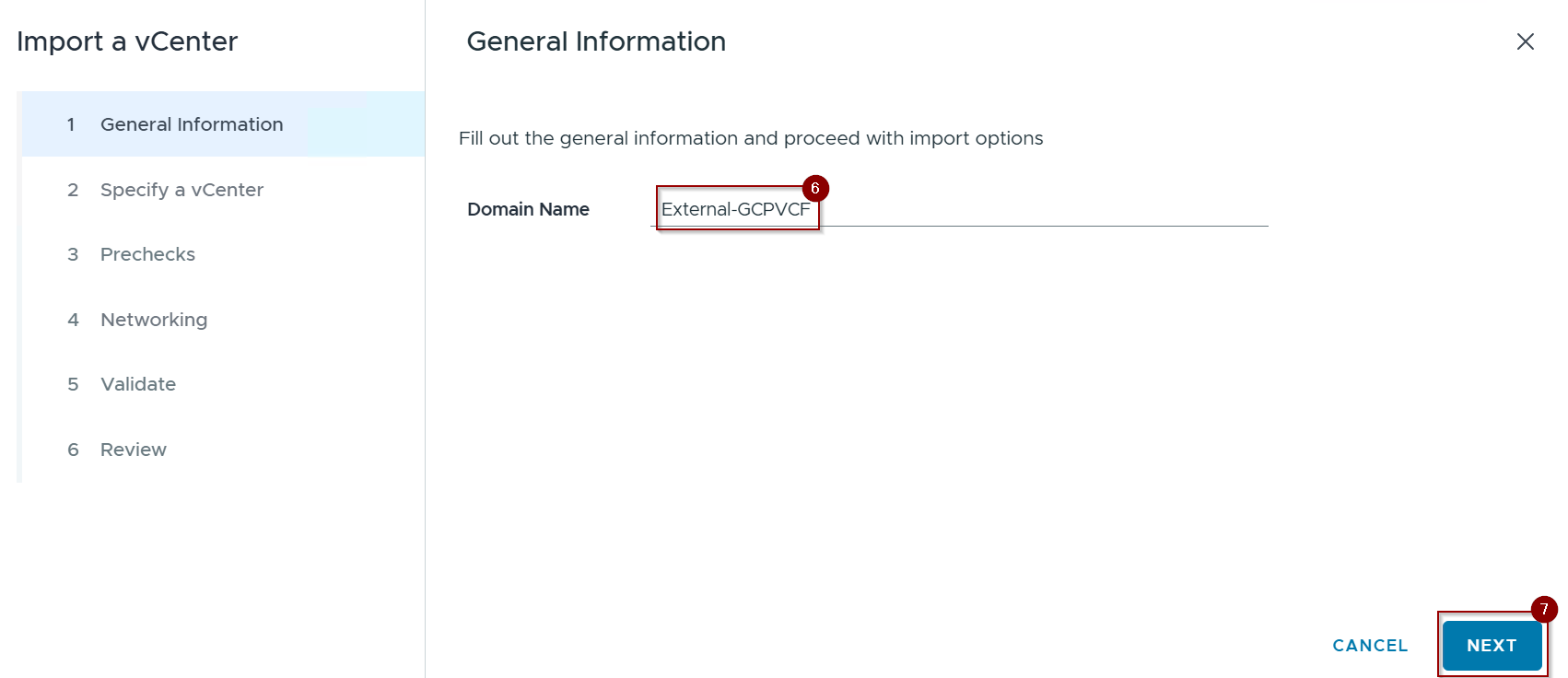
Step 6: – Give the Domain Name.
Step 7:- Click on Next.
Capture 3: –
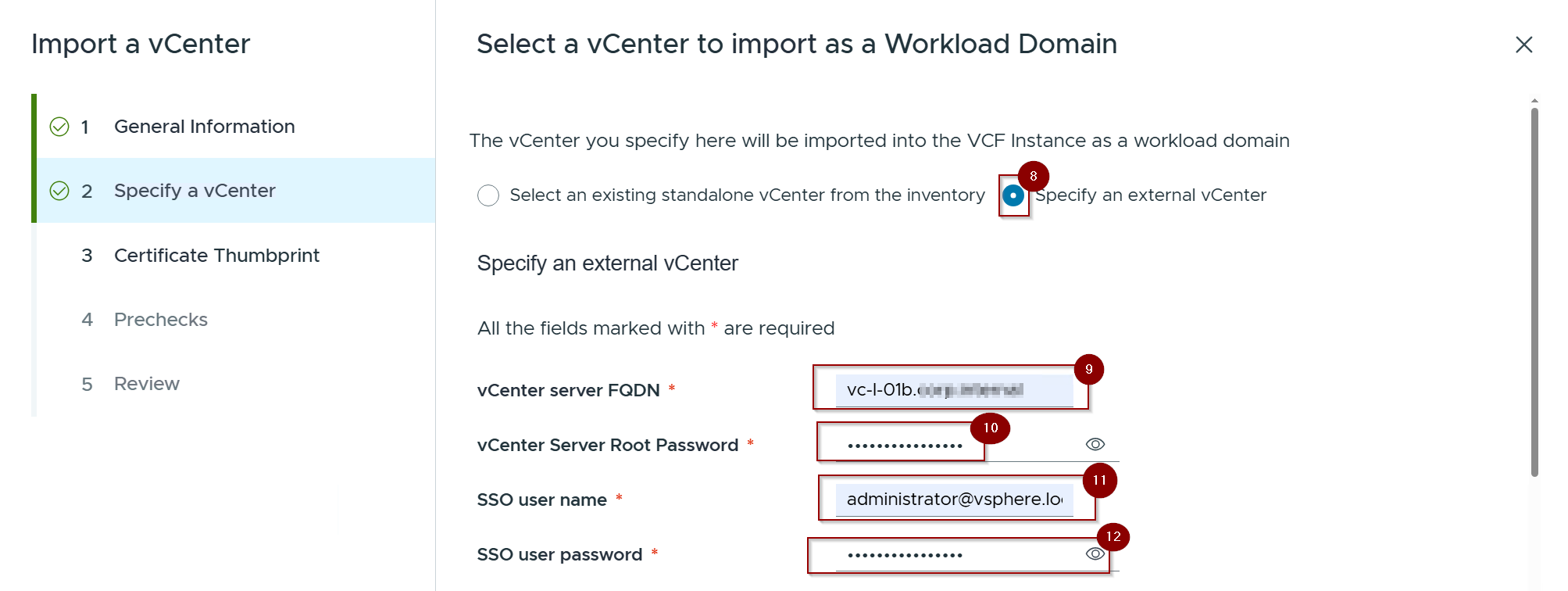
Step 8: -Click on the Radio button of Specify an external vCenter.
Step 9: – Give the FQDN of the vCenter Server.
Step 10: – Give the password of the vCenter Server Root.
Step 11: – Give the SSO user name creds.
Step 12: – Give the Password of SSO User.
Capture 4: –

Step 13: – Click of the slider of This vCenter is connected to an NSX instance.
Step 14: – Give the FQDN of the NSX Manager VIP.
Step 15: – Gives the password of the administrator.
Step 16: – Gives the password of the Root.
Step 17: – Gives the password of the Audit.
Step 18: – Click on Next
Note:- In this blog use case, I prefer not to import the edge cluster. However, if desired, you can enable the edge cluster synchronization and import the NSX edge node VMs by selecting the corresponding radio button.
Capture 5: –
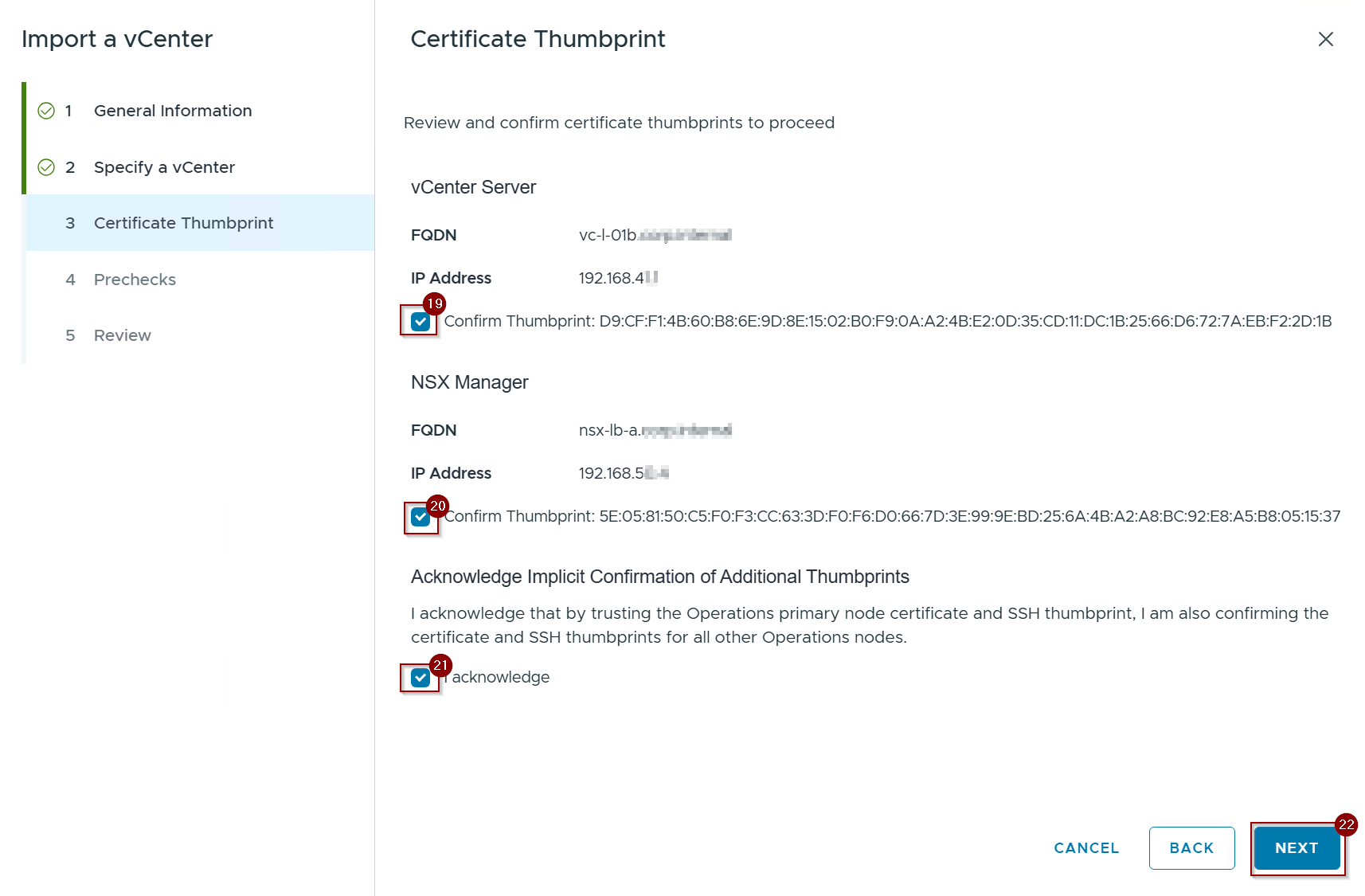
Step 19: Select the Radio button and confirm the thumbprint for vCenter Server.
Step 20: Select the Radio button and confirm the thumbprint for NSX Manager.
Step 21: Select the Radio button of I acknowledge.
Step 22: – click on Next.
Capture 6.0: –
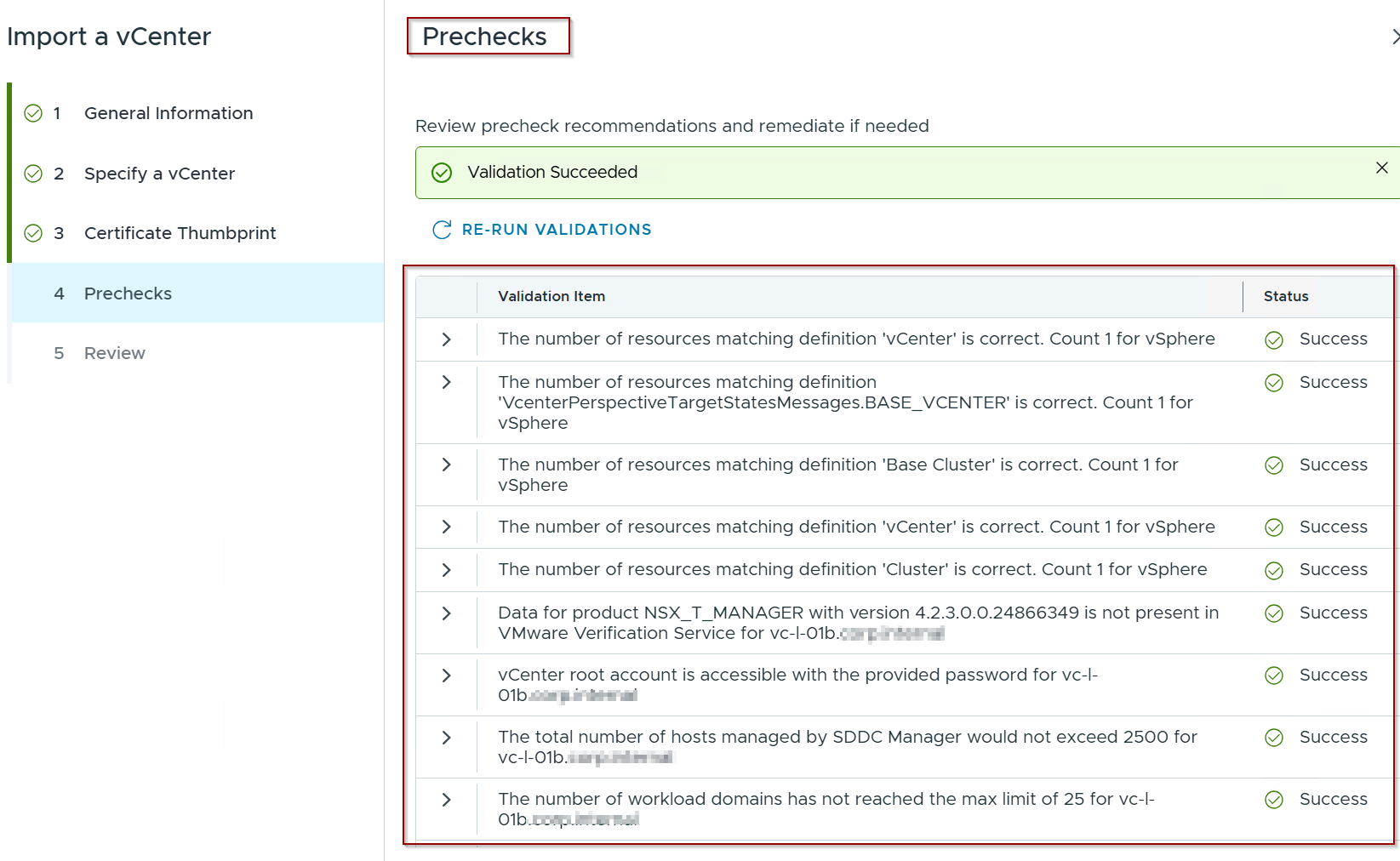
Note: – In my use case, a total of 133 prechecks are performed. This number will vary depending on the environment. In this step, it will adhere to the best practices of VCF 9.X as well as the external imported vCenter and NSX.
Capture 6.1: –
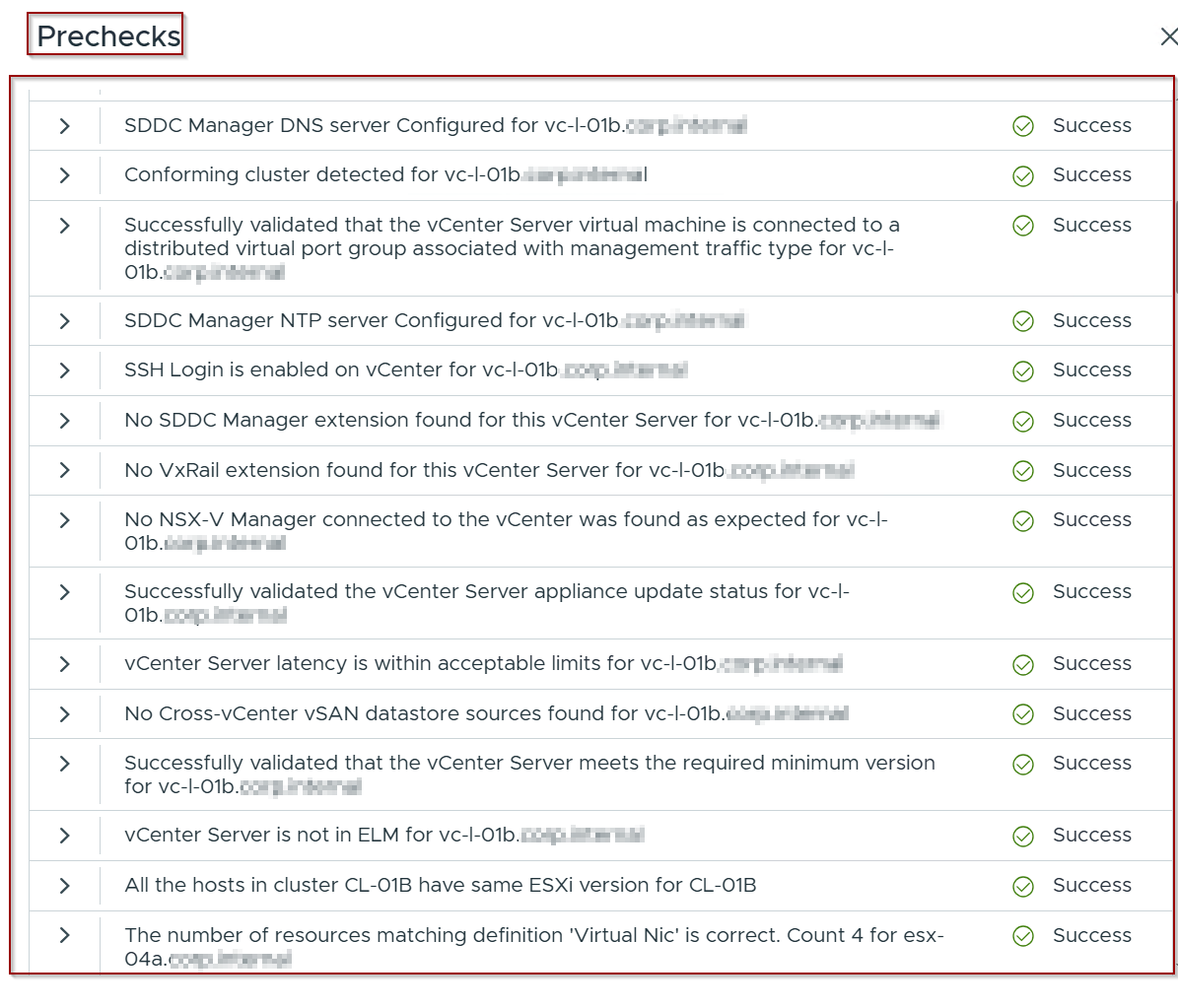
Note: -Initially, the system will check NTP, DNS, VXRAIL extension, cross vCenter vSAN datastore, and ELM. These checks will be validated with the imported hosts.
Capture 6.2:-

Note: -This will ensure that FQDNs, host certificates, and VNICs are properly associated with the importing hosts.
Capture 6.3: –

Note: -This will ensure that FQDNs, minimum host version, and VNICs are properly associated with the importing hosts.
Capture 6.4: –
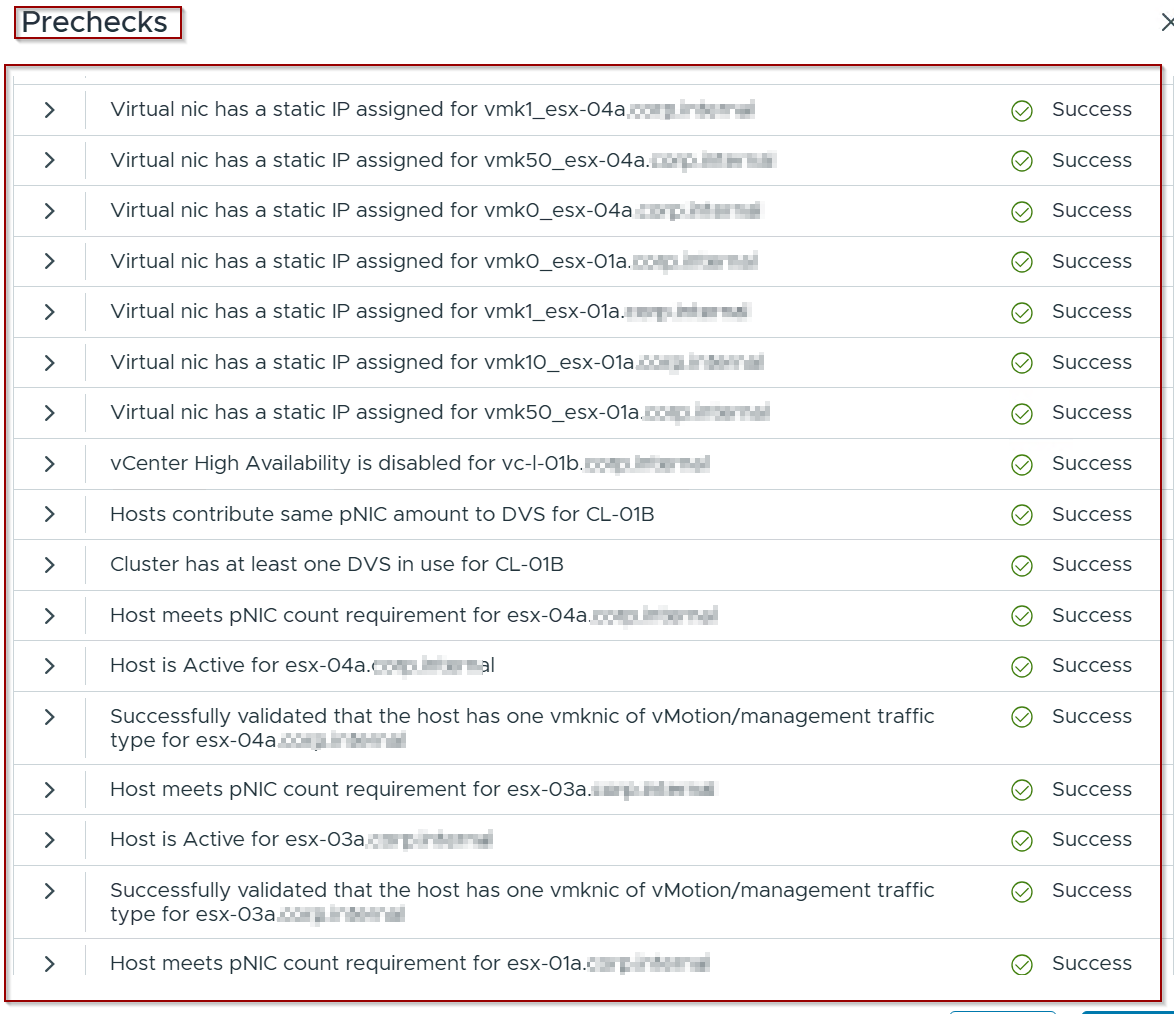
Note: -This will confirm that the Overlay Network, Host Certificates, and VNICs are associated with the importing hosts.
Capture 6.5: –
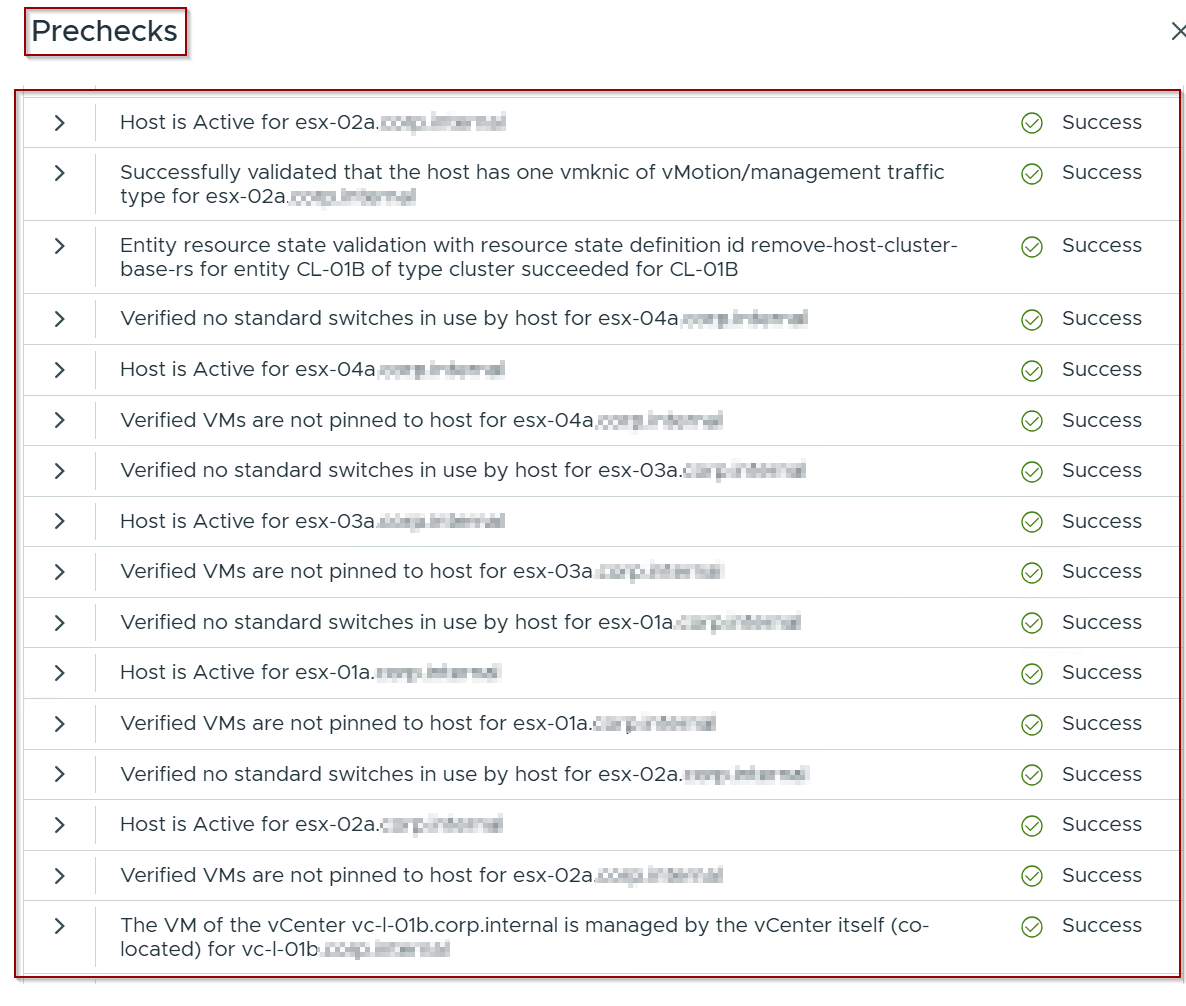
Note: -This will ensure that no standard switch is configured and that host profiles are associated with the importing hosts.
Capture 6.6: –
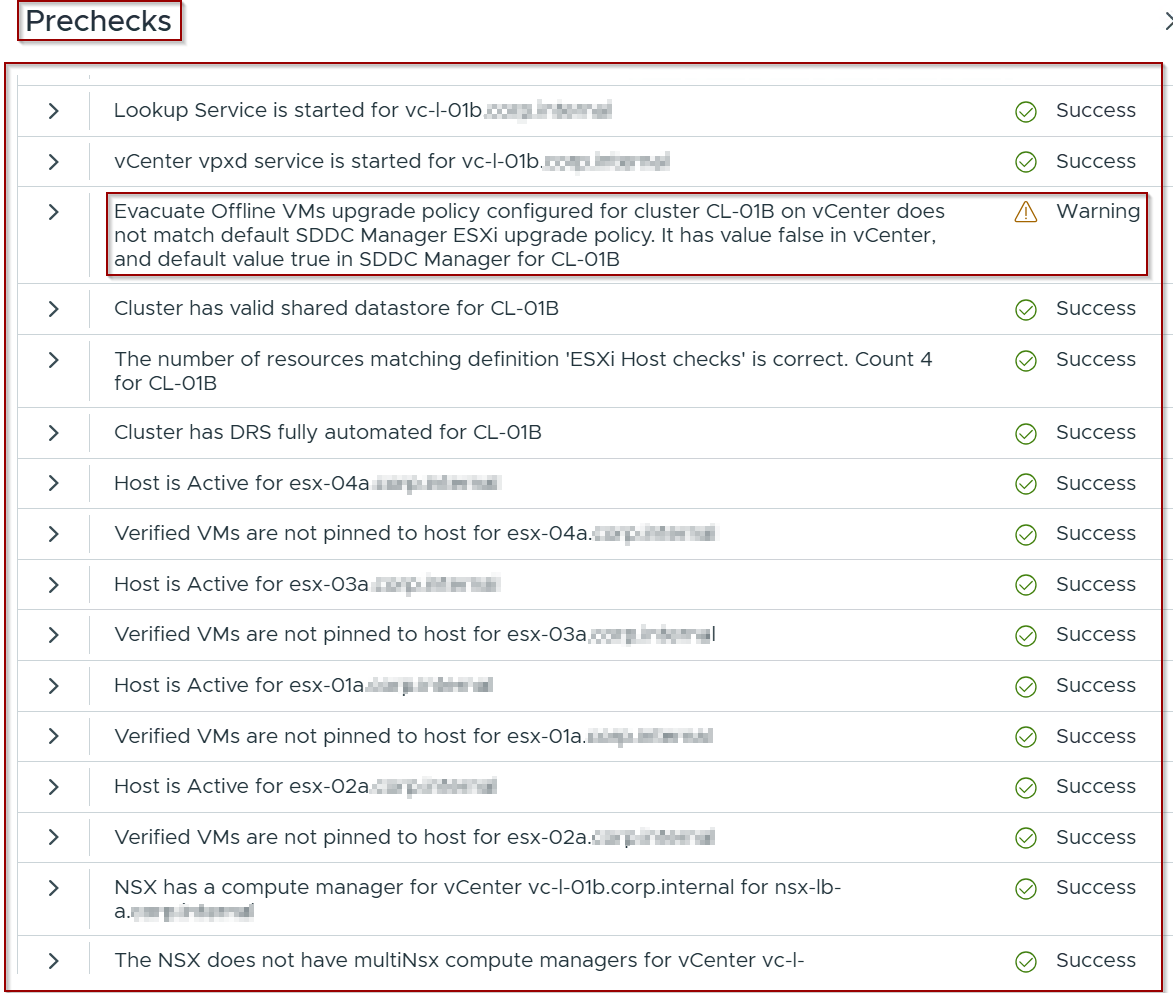
Note: – Warning we can ignore.This will be resolved in 9.x.
Capture 6.7: –
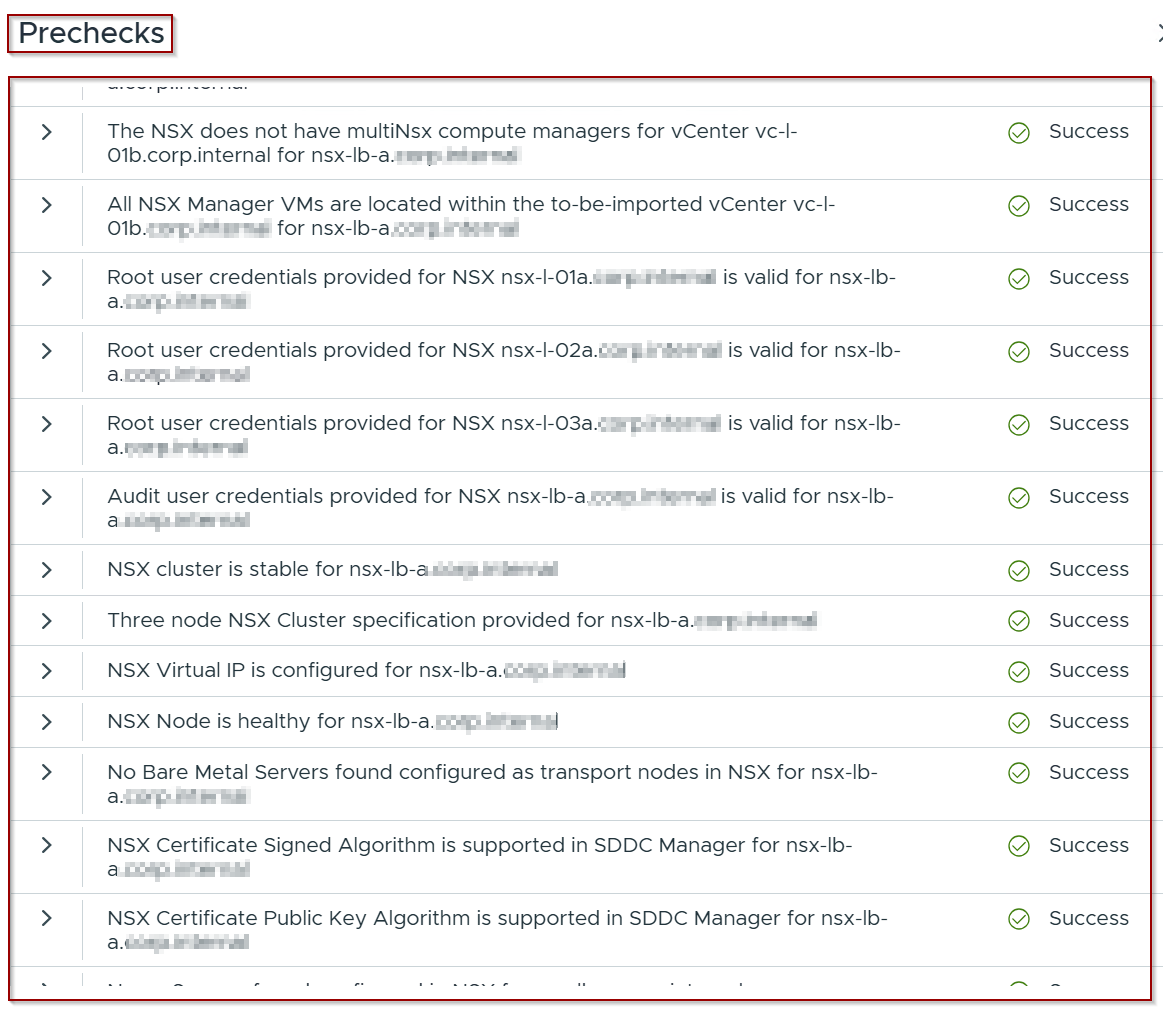
Note:- This will validate NSX compute, NSX credentials (root, admin, audit), bare metal servers, and NSX VIPs.
Capture 6.8

Note: -This will verify the stability of the 3-node NSX cluster and assess the health of the NSX nodes.
Capture 6.9: –
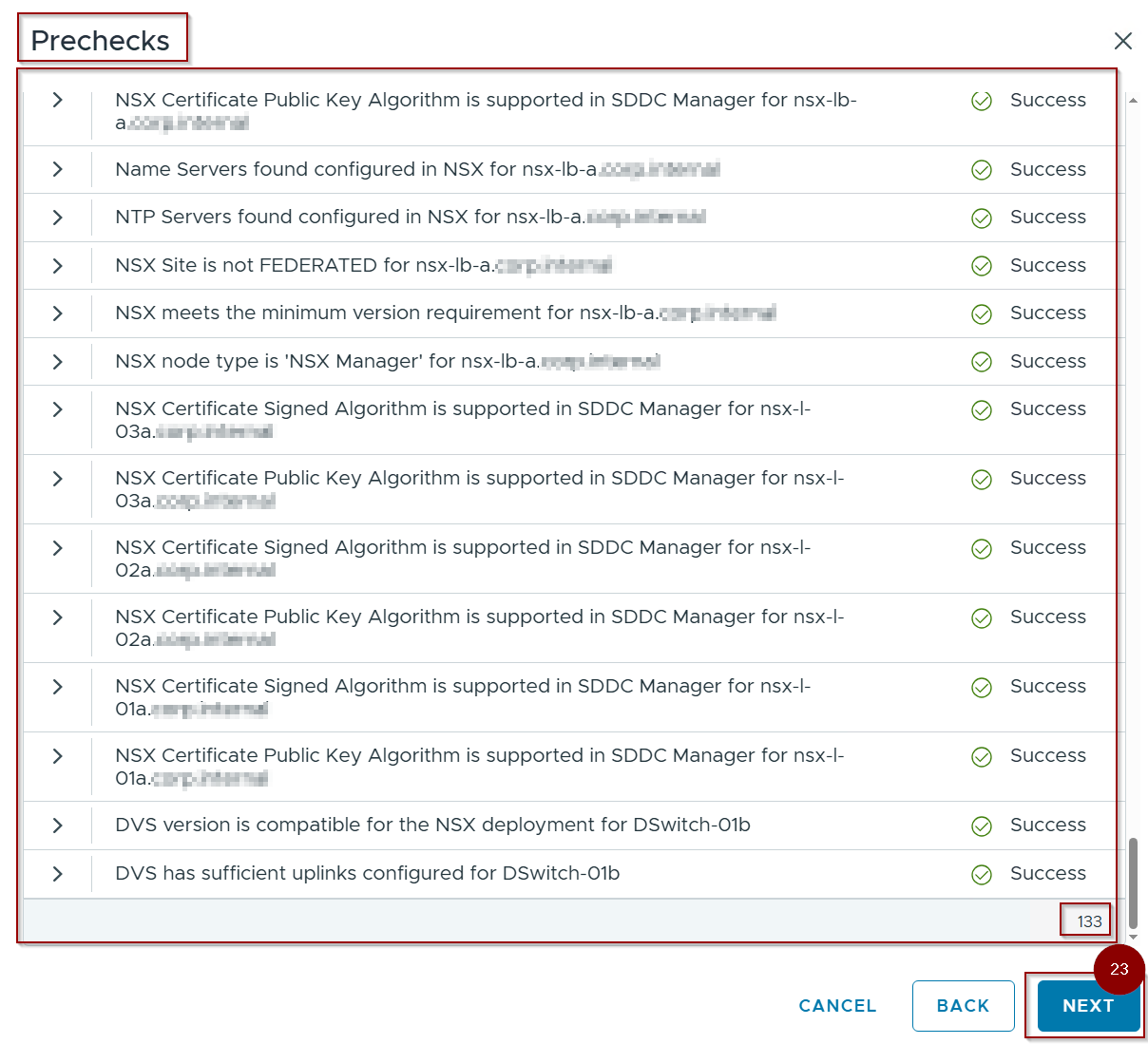
Note: -This will confirm that the NSX site is not federated, ensure DVS version compatibility, and check for sufficient uplinks on the DVS.
Step 23:- Click on Next.
Capture 7: –
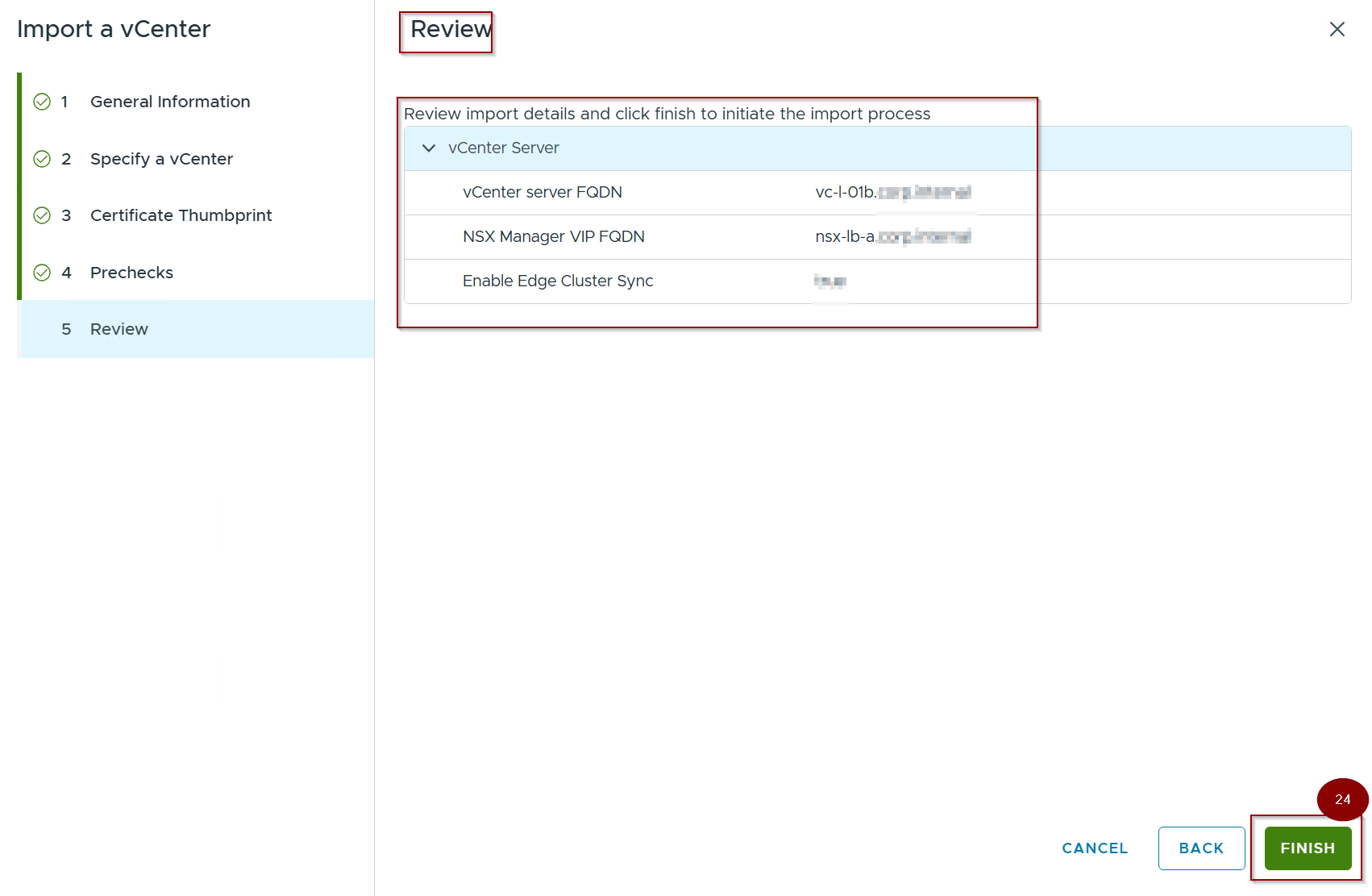
Step 24: – Click on Finish.
Section 3: Post-Deployment Verification and Validation
In this section, we shall conduct a verification of the configuration and validation processes through three distinct perspectives.
Fleet Management tasks Validation and Verification
Capture 1: –
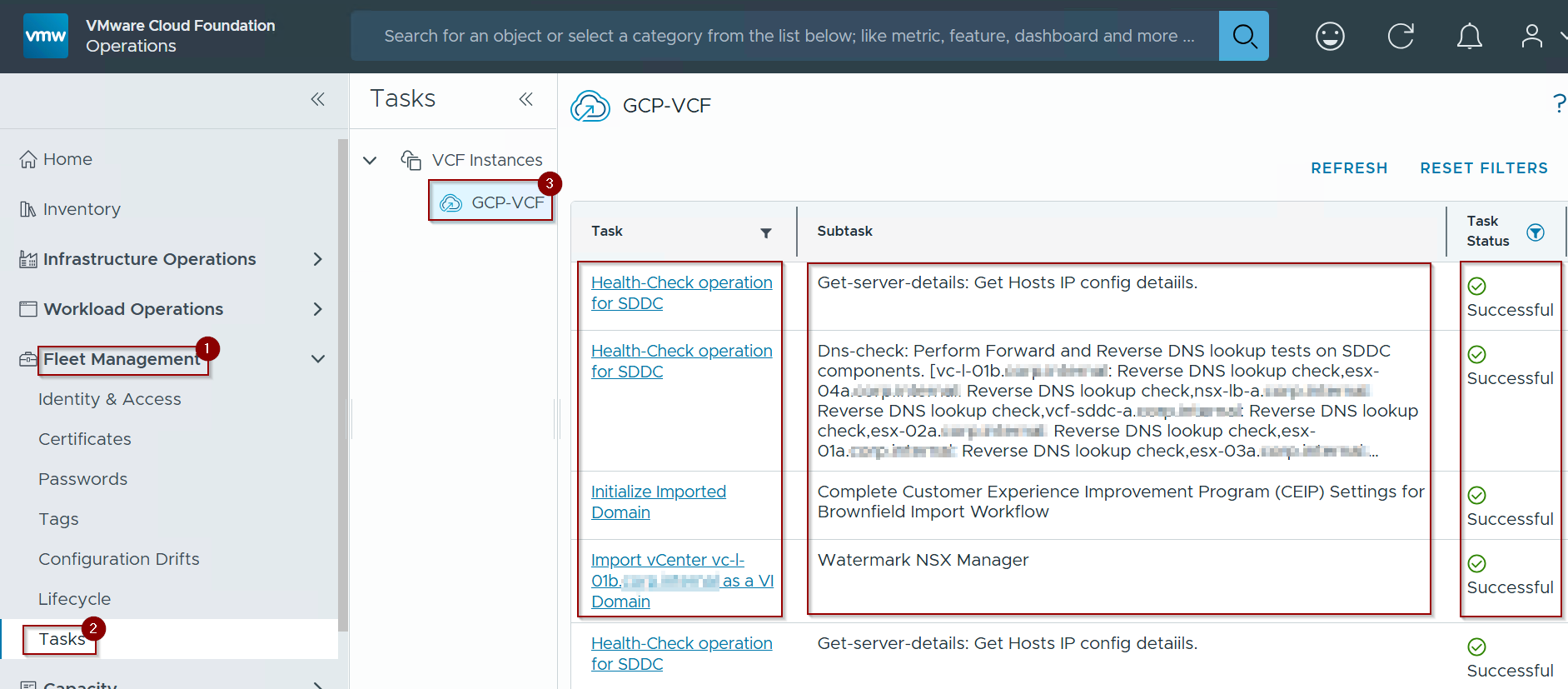
Step 1: – Click on Fleet management
Step 2: – Click on Tasks.
Step 3:- Select the VCF instance.
Note: – This process will took in lab less than 3 mins. may be it will vary as per the environment.
Validation and Verification from Inventory
Capture 2:-
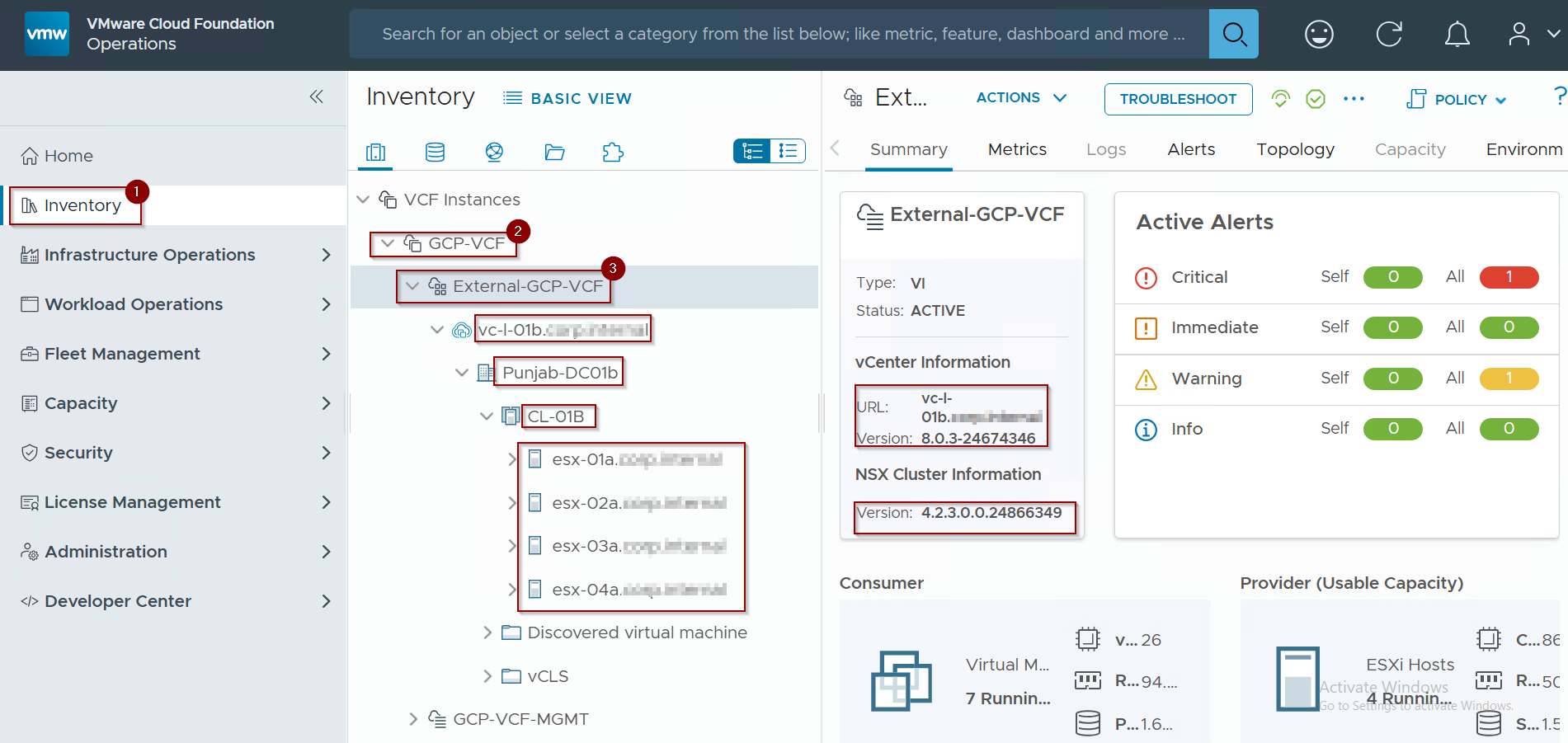
Step 1:- Click on Inventory
Step 2:- Click on VCF instance.
Step 3: – Click on the Import External vCenter.
Validation and Verification from SDDC Manager
Capture 3: –
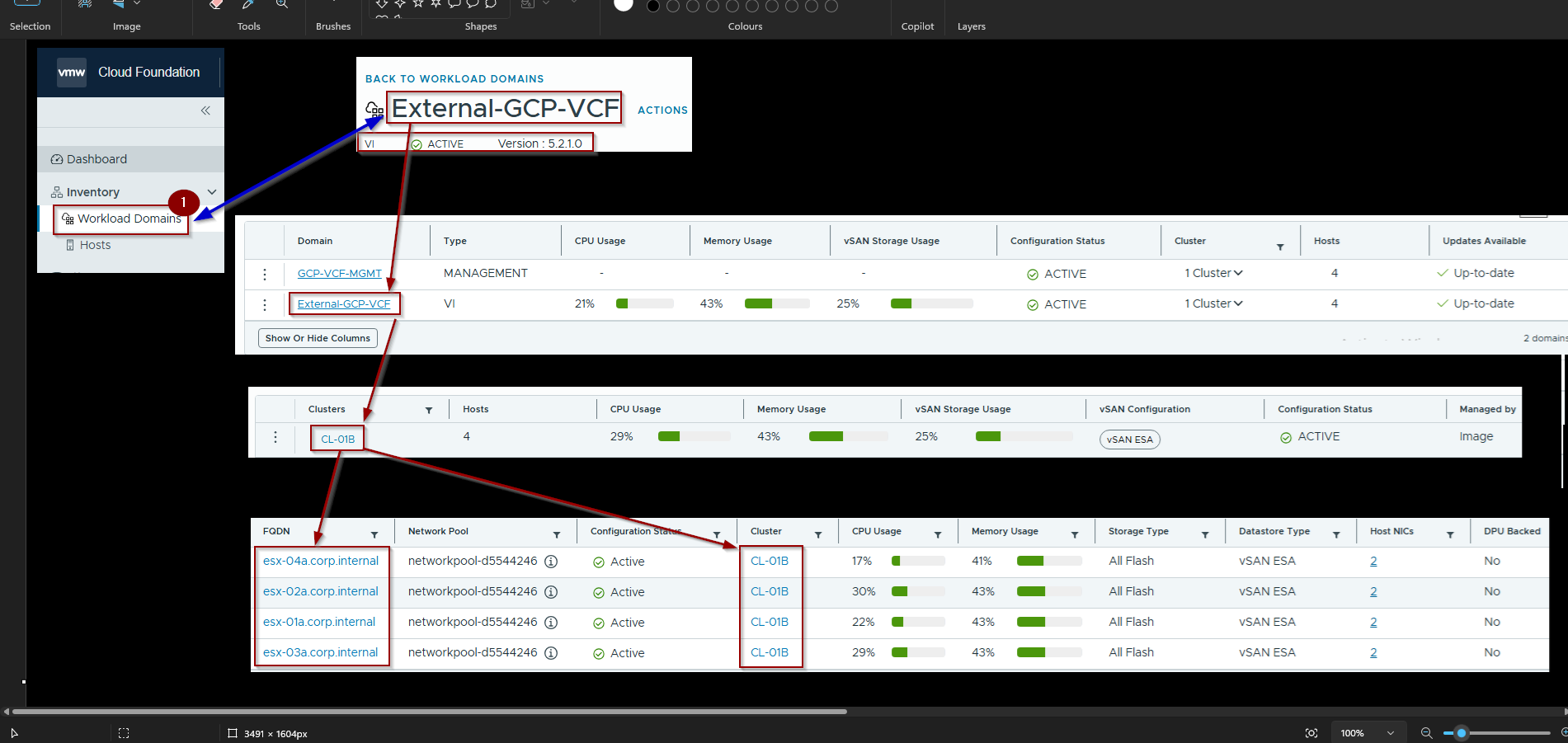
Step 1: – Login to SDDC Manager and Click on Workload domain under Inventory.
Section 4: Important Considerations and Limitations
- Host Lifecycle Management (vLCM):VCF 9.0 Workload Domains leverage ESXi Image Manager (vLCM) for host lifecycle.SDDC Manager is the authoritative source for host patching and upgrades within these WLDs, orchestrating updates via vLCM.Host lifecycle operations for these WLDs are performed through SDDC Manager, not directly via the vCenter’s vLCM UI.
- Existing vSAN Cluster Import:This feature does not support importing existing vSAN clusters.VCF configures new vSAN clusters on unmanaged ESXi hosts via the imported vCenter.ESXi hosts previously part of an existing vSAN cluster must be depopulated, removed from any vCenter, and reset to an unmanaged state prior to being added to the VCF Workload Domain.
- SSO Domain Strategy: Careful planning of your SSO domain strategy is essential. While VCF supports integration with existing SSO domains, potential identity management complexities should be addressed during design.
- Networking Consistency: Maintaining consistent network configurations across all ESXi hosts within the Workload Domain is critical for operational stability and successful VCF LCM operations.
- Monitoring and Troubleshooting: Ensure existing monitoring solutions integrate with the imported vCenter and the new NSX instance. Leverage VCF’s built-in health checks and logging for comprehensive oversight.
- Backup and Recovery: Implement robust backup and recovery procedures for the imported vCenter Server, as well as the Workload Domain’s configuration.
- No Stretched Cluster Support: This feature currently does not support stretched clusters.
- No vCenter High Availability (VCHA) Support: If your existing vCenter is configured with VCHA, it will not be used in this context by SDDC Manager.
- No Custom Certificate Support: The VCF import process does not currently support vCenter Servers with custom certificates; it expects the default certificate.
- NSX Federation: Does not support NSX Federation.
- Only VI Workload Domains: Only supports Virtual Infrastructure (VI) Workload Domains.
Conclusion
The “Import an Existing vCenter” capability in VMware Cloud Foundation 9.0 represents a significant advancement in VCF’s architectural flexibility, offering a path to leverage a dedicated existing vCenter Server for Workload Domain creation. By adhering to the precise prerequisites, particularly the clean state of the vCenter being imported, organizations can integrate this vCenter into their VCF environment. This detailed guide, based on official documentation, provides the technical steps to successfully deploy and integrate your existing vCenter, empowering you to build a more adaptable and efficient private cloud.
 Puneet Sharma
Leave a comment