

- Introduction
- Series Summary
- Unified Tags Management: The Source of Truth
- Policy as Code: Declarative Infrastructure Control
- Implementation Steps: Configuring Business Intent
- Conclusion
Introduction
In VCF 9.0, optimization is not strictly a performance metric; it is a governance requirement. While operational intents focus on how resources are used, Business Intents define where workloads are permitted to reside based on compliance, licensing, and organizational policy. VCF 9.0 introduces Unified Tags Management and Policy as Code capabilities that allow these mandates to be enforced programmatically across the VCF fleet.
Series Summary
- Part 1: Architecture and Logic of VCF 9.0 Workload Placement: Understanding the integration between VCF Operations and vSphere DRS.
https://puneetsharma.blog/2026/01/03/part-1-architecture-and-logic-of-vcf-9-0-workload-placement/ - Part 2: Defining VCF 9.0 Operational Intent for Capacity Management
Mastering Operational Intents to prioritize performance balancing versus hardware consolidation.
https://puneetsharma.blog/2026/01/15/part-2-defining-vcf-9-0-operational-intent-for-capacity-management/ - Part 3: (Current) Utilizing Business Intents and Tagging for automated license enforcement and compliance.
https://puneetsharma.blog/2026/02/20/part-3-enforcing-vcf-9-0-governance-through-business-intents/ - Part 4: The VCF 9.0 Execution Cycle: Analyzing and Implementing Optimization
Managing the Action-Recommendation Loop via manual, scheduled, and automated execution modes.
https://puneetsharma.blog/2026/03/03/part-4-the-vcf-9-0-execution-cycle-analyzing-and-implementing-optimization/ - Part 5: VCF 9.0 VM Lifecycle Optimization: Rightsizing Strategies
Precision resource management through Rightsizing oversized and undersized VMs.
https://puneetsharma.blog/2026/03/16/part-5-vcf-9-0-vm-lifecycle-optimization-rightsizing-strategies/
Unified Tags Management: The Source of Truth
VCF 9.0 leverages a unified tagging architecture to eliminate the complexity of inconsistent tag systems across multiple vCenter instances. Tags serve as the metadata bridge that translates human-readable business requirements into machine-executable placement logic.
Technical Tag Categories
Administrators categorize vCenter Server tags into specific groups that the placement engine recognizes as constraints:
- Operating System: Maps workloads to specific licensed host clusters (e.g., separating Microsoft Windows and Oracle workloads to prevent license creep).
- Environment: Segregates Production, Development, and Test tiers to prevent dev workloads from consuming mission-critical resources.
- SLA/Tiering: Ensures “Gold” tier applications only land on high-performance hardware, such as clusters with NVMe memory tiering.
- Data Sovereignty: Uses Geo-fencing tags to ensure data residency compliance by pinning workloads to specific physical sites or fault domains.
Tag Violation Logic
The placement engine continuously monitors the fleet for Tag Violations. A violation is flagged if a VM’s tags do not match the tags of its current Cluster or Host. This triggers a “Not Optimized” status, allowing the engine to recommend migrations that restore compliance with the defined business intent.
Policy as Code: Declarative Infrastructure Control
VCF 9.0 shifts governance from manual wizard-driven tasks to a Policy as Code model, utilizing Kubernetes-native APIs and standardized blueprints.
Declarative API Control
Workloads are managed via a declarative API through the vSphere Supervisor. This allows platform teams to onboard stateful monoliths or modern microservices into a Kubernetes-controlled environment where resource quotas and security policies are enforced uniformly.
Reusable Blueprints and JSON Templates
- Standardized Blueprints: VCF Automation blueprints allow users to define placement logic using low-code YAML. These blueprints incorporate cost and policy tagging, ensuring that every provisioned resource is compliant from Day 0.
- JSON Templates: The deployment of Workload Domains and cluster configurations is now driven by JSON templates, ensuring repeatability and eliminating manual configuration drift across the fleet.
Implementation Steps: Configuring Business Intent
To enforce governance via business intents and tags in VCF 9.0, follow this technical workflow:
Step 1: Tag Infrastructure and Workloads
- In vCenter, create a Tag Category.
Capture 1:-
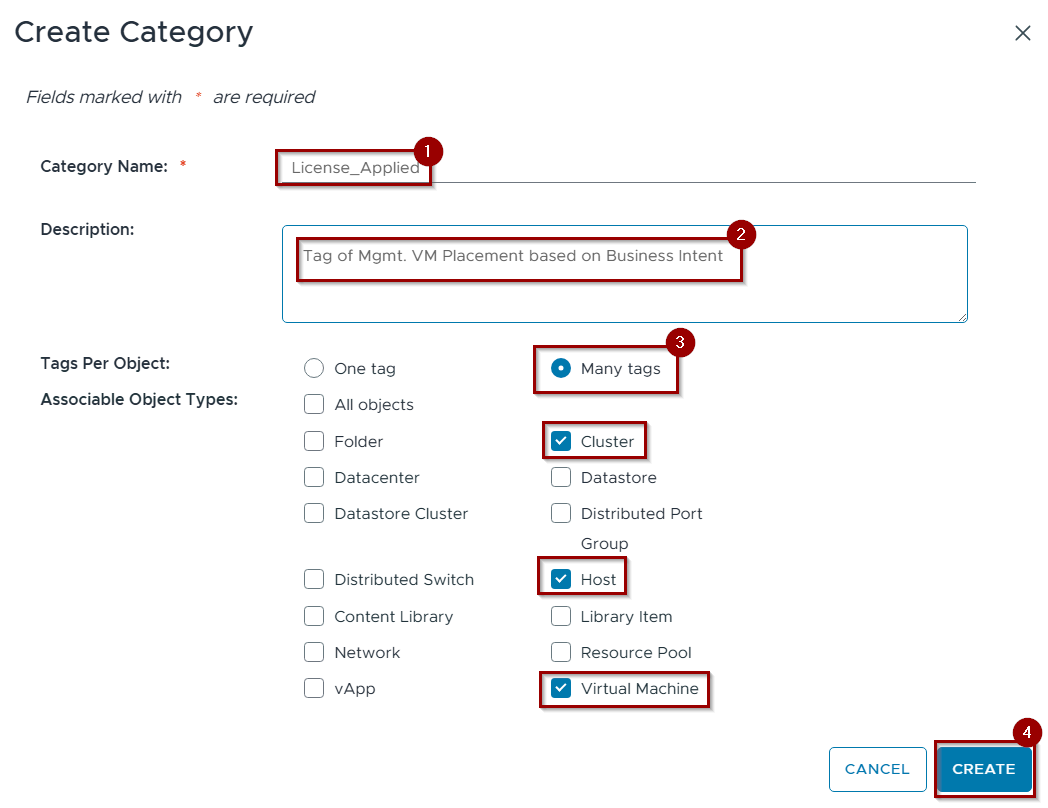
- Give the Category name. In this capture we are using “License_Applied’.
- Gives the Description.
- Select the appropriate tags (Cluster, host & Virtual machine)under associated object types and select the Many tags from the tags per object.
- Click on Create.
2. Create associated Tags.
Capture 2: –
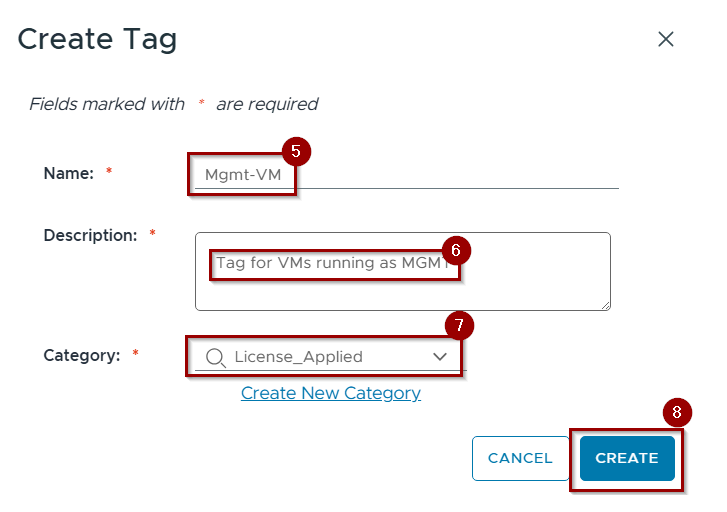
5. Gives the name of the Tag.
6. Gives the description.
7. Select the category.
8. Click on Create.
Capture 3: –
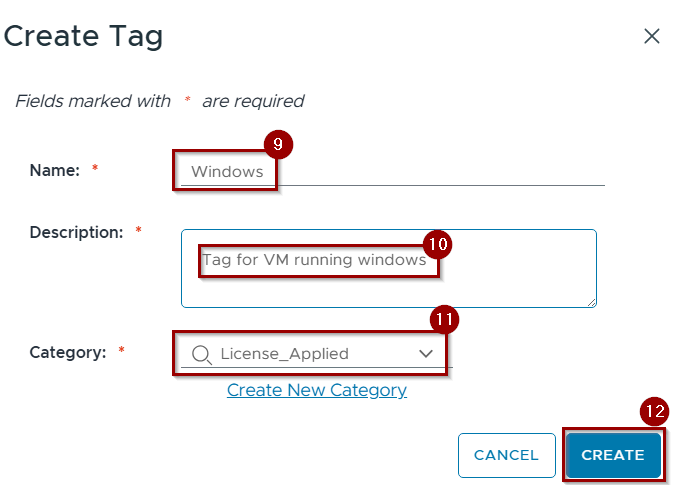
9. Gives the name of the Tag.
10. Gives the description.
11. Select the category.
12. Click on Create.
Note:- We are using two types of tags to fulfill the business intent requirement: Mgmt_VM for management VMs and Windows for workload VMs..
- Assign these tags to the specific Cluster and all associated Virtual Machines.
Capture 4: –
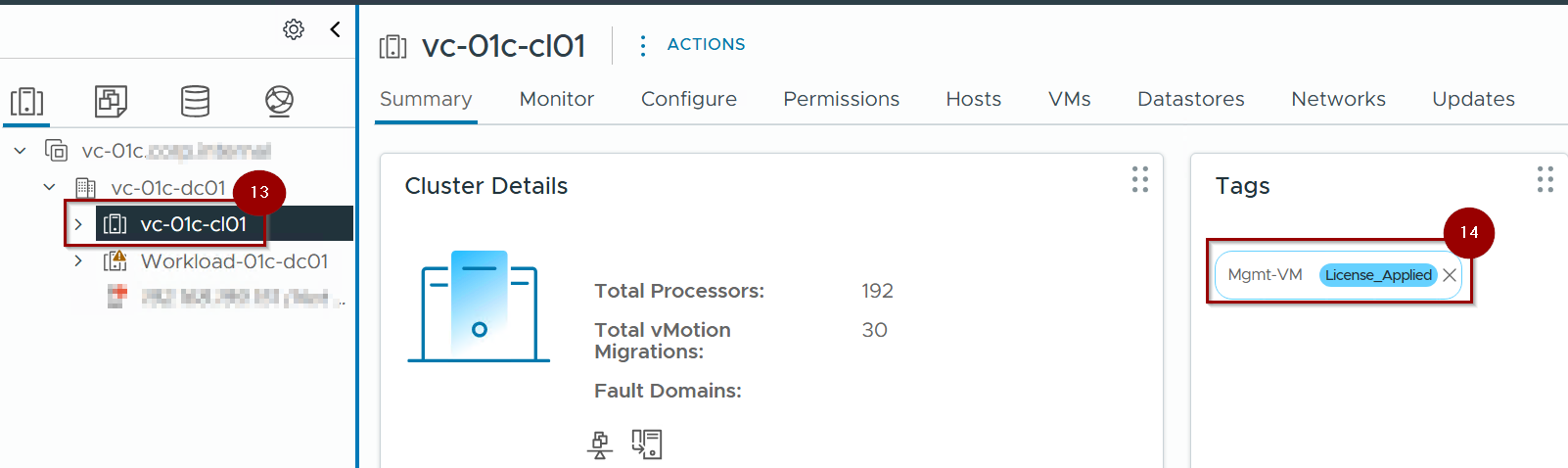
13. Select the Cluster (vc-01c-cl01).
14.We are using the Mgmt_VM tag for cluster vc-01c-cl01.
Capture 5: –
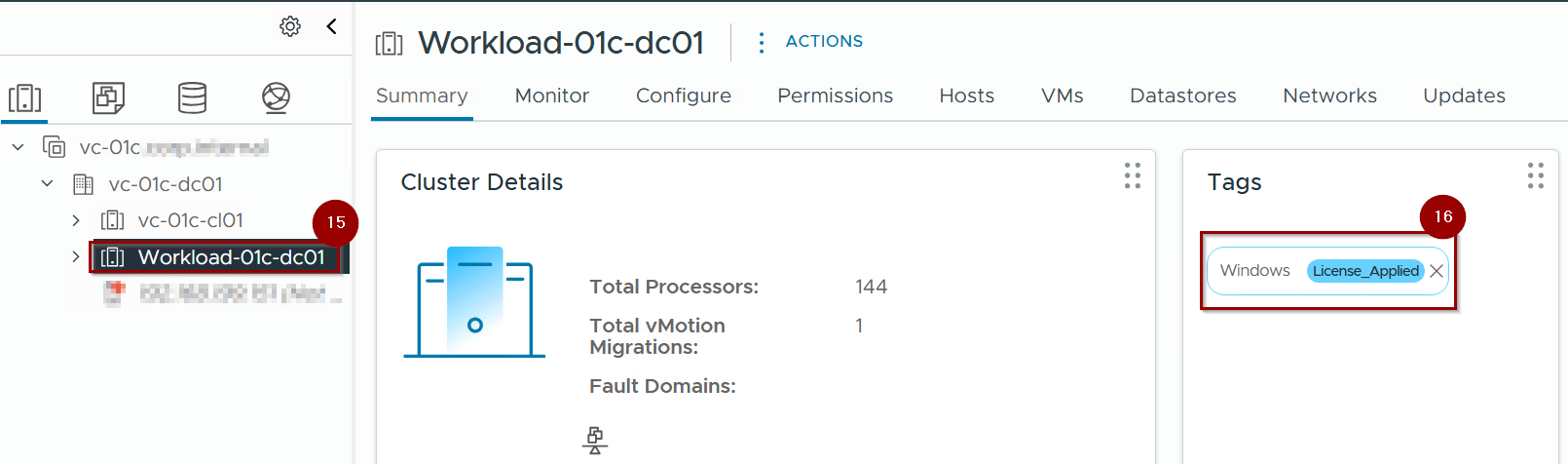
15. Select the Cluster (Workload-01c-dc01).
16.We are using the Windows tag for cluster Workload-01c-dc01.
Note:- Based on captures 4 and 5, we are tagging two separate tags for two separate clusters.
Assign these tags to all associated Virtual Machines.
Capture 6: –
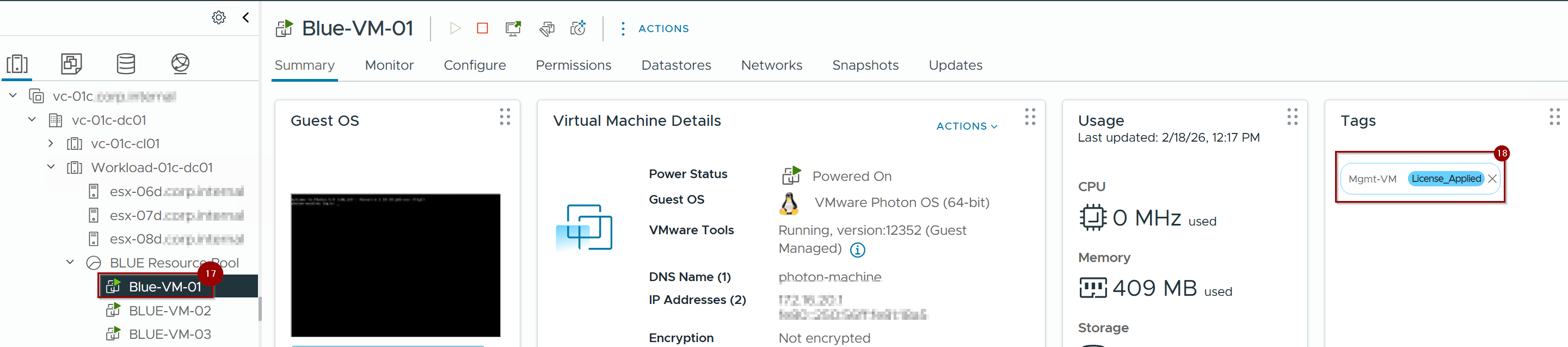
17. Select the VM (Blue-VM-01).
18. Assign the Tag (Mgmt-VM).
Capture 7: –
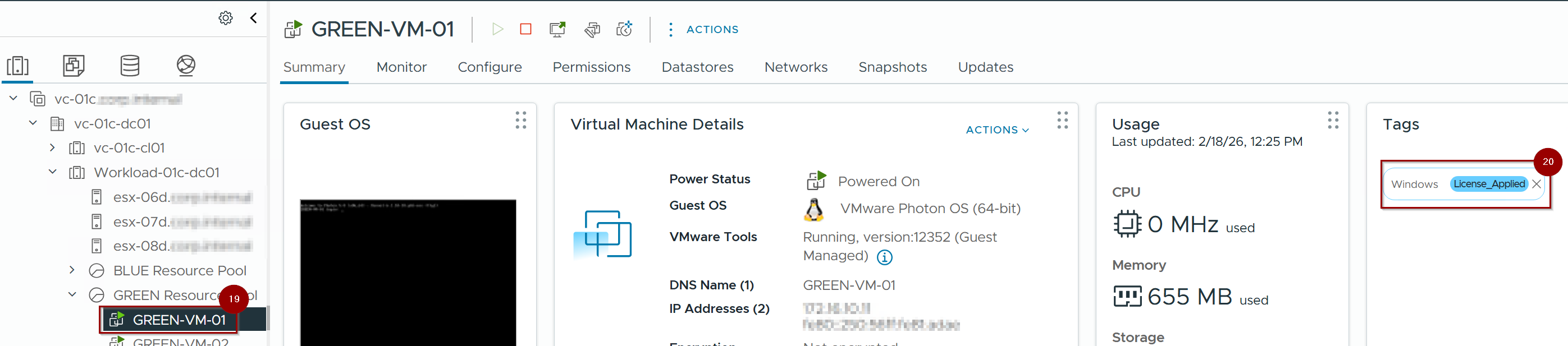
19. Select the VM (Green-VM-01).
20. Assign the Tag (Windows).
Step 2: Define Business Intent in VCF Operations at Cluster level
Capture 1: –
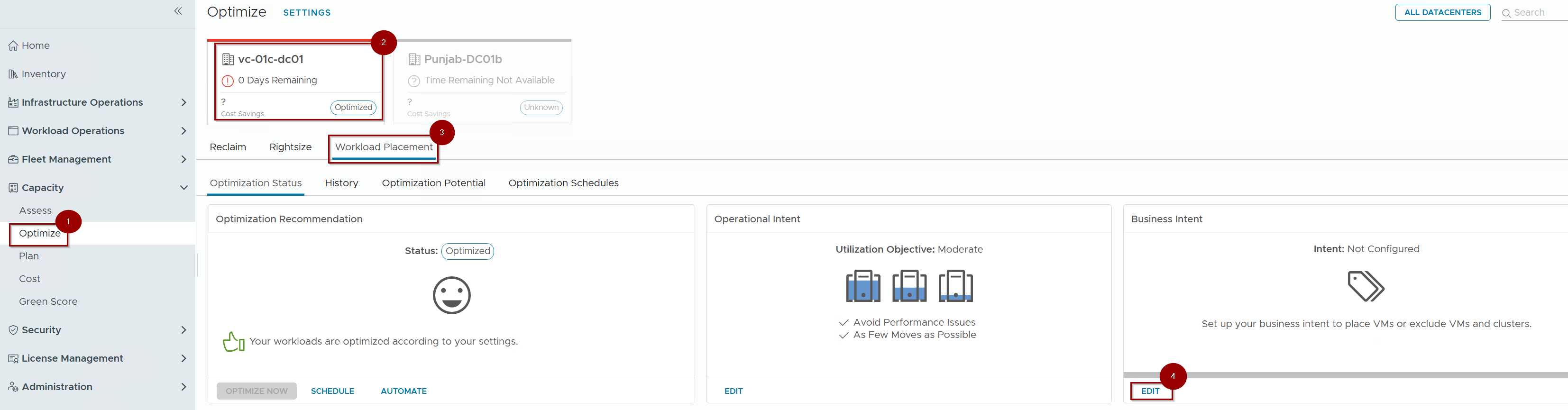
- Click on Optimize under capacity.
- Select the Datacenter.
- Click on Workload Placement.
- Click on Edit in the Business Intent pane.
Capture 2: –
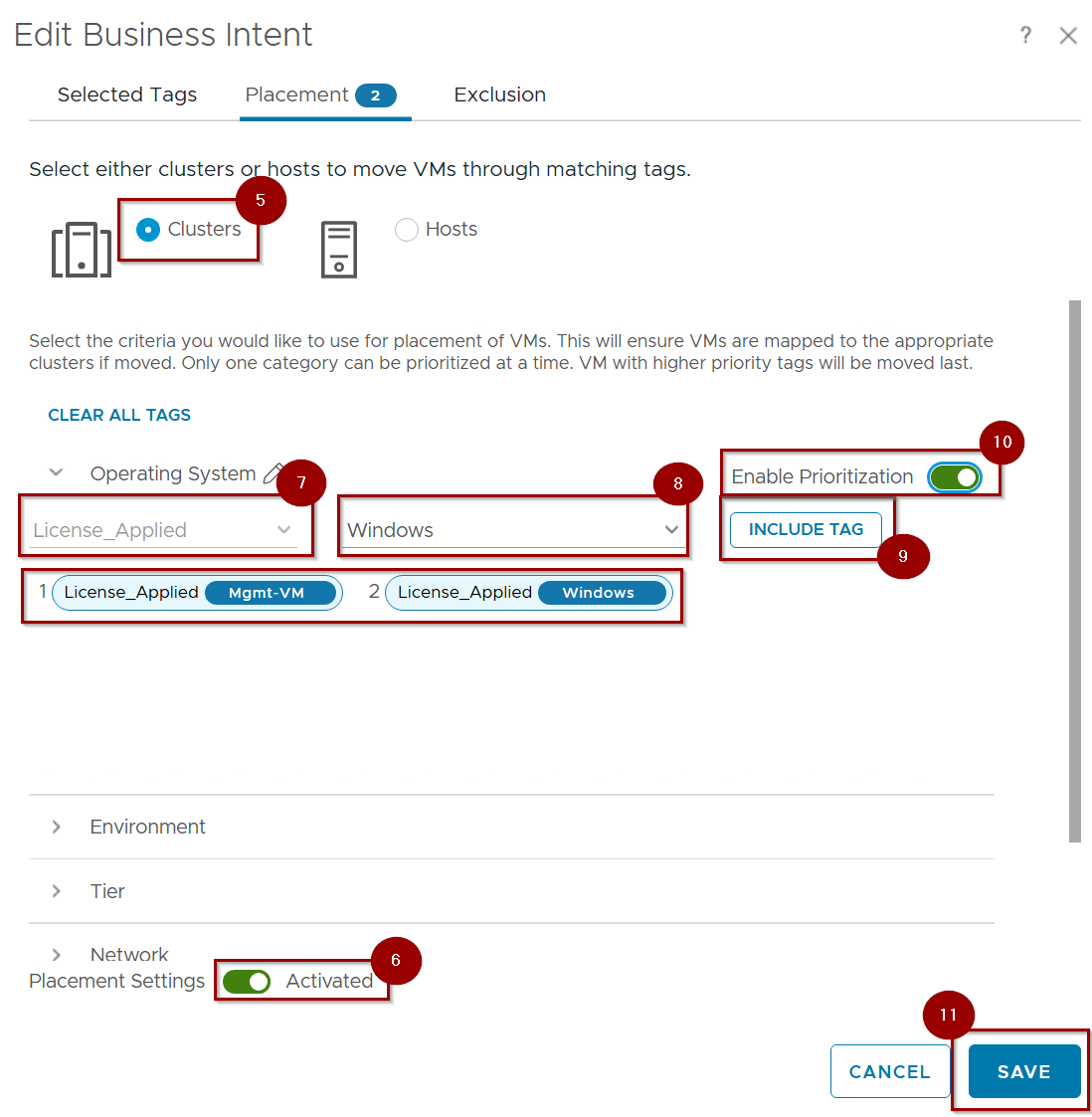
5. Select the Cluster.
6. Activated the Placement Setting.
7. Select the Category.
8. Select the tags.
9. Click on INCLUDE TAG.
10. Enable the Enable Prioritization.
11. Click on Save.
Note: -As per our requirements, we can select the tagging category. In this blog, we are using “Operating System,” but you can select other categories such as Environment, Tier, Network, and others. You can even add new categories based on your needs
Capture 3: –

12. Under “Violated Tags,” the tags assigned to the cluster are visible.
13. Under “VM Name,” only VMs where the tags are not applicable will be displayed.
Step 3: Define Business Intent in VCF Operations at Host level Automated Rule Management
Note: – Step 3 is optional because Step 2 already specifies the business intent at the cluster level. If you prefer host-level placement over the cluster-level option, follow the steps below, as host-level placement will remove your cluster-level tags
Capture 1:-
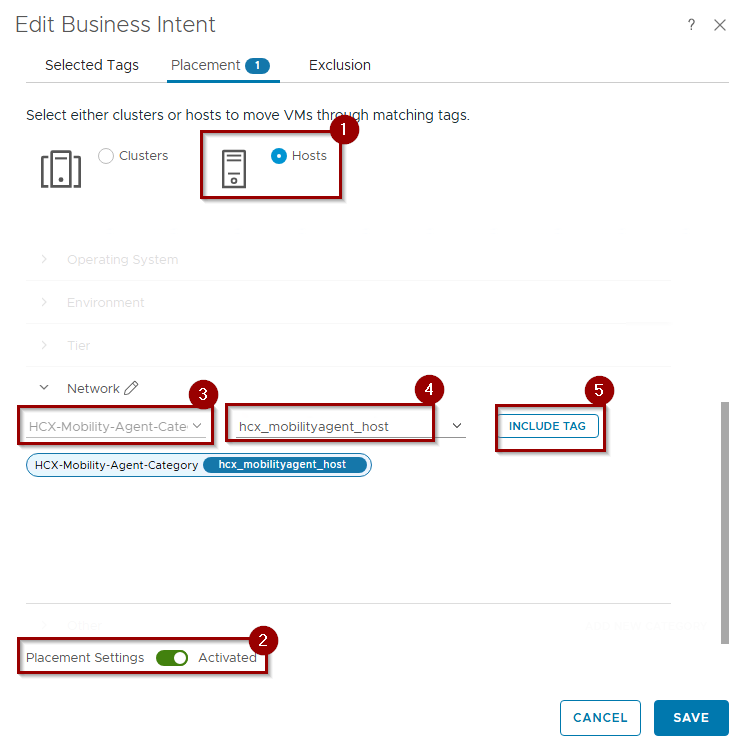
- Select the hosts.
- Activated the Placement Setting.
- Select the Category.
- Select the tags.
- Click on INCLUDE TAG.
Capture 2: –
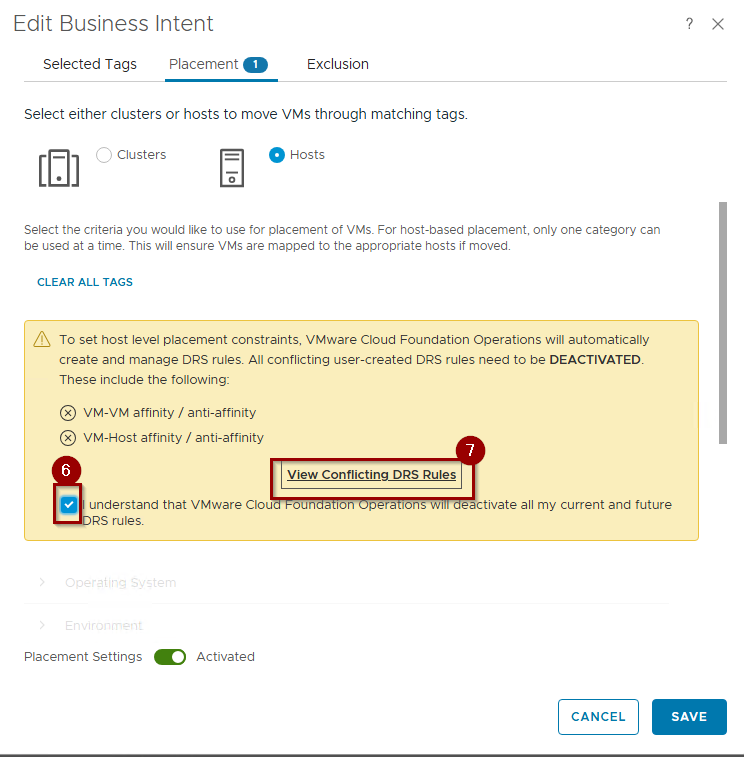
6. Select the Radio Button.
7. Click on “View Conflicting DRS Rules”. this will show the rules which are conflicting with your current and proposed DRS rules.
Capture 3: –
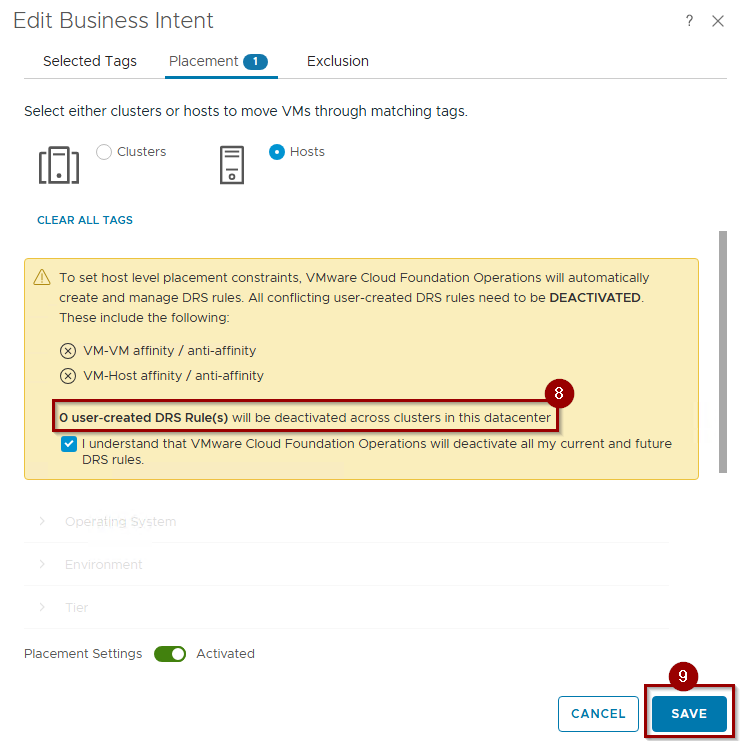
8. Based on this, zero user-created DRS Rules will be deactivated across the cluster, which is expected in the lab environment. However, in production, we should definitely see a lot of DRS rules being deactivated.
9. Click on Save.
Capture 4: –
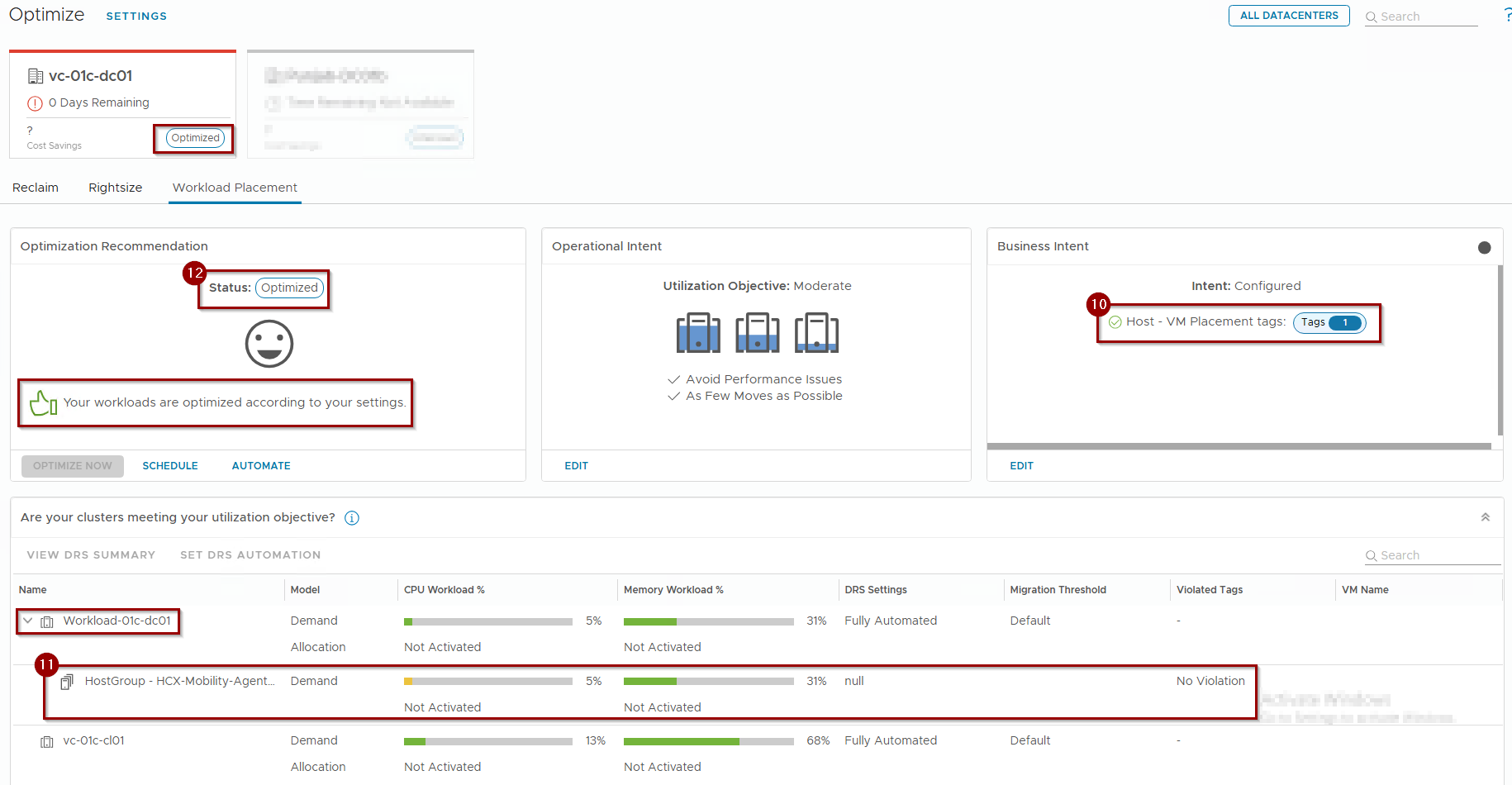
10. As we can see the tag is applied on the Host level.
11. When you expand the Cluster we can see the Tag is applied on the Host Group level.
12. Workloads are fully Optimized.
Note:-In the host-level placement, VCF Operations will automatically generate the required vSphere DRS Affinity Rules.Confirm the system’s request to disable any conflicting manual DRS rules to ensure the automated policy remains the “Single Source of Truth”.
Conclusion
Business intents in VCF 9.0 transform tags from simple organizational labels into powerful governance tools. By utilizing Unified Tags Management to define boundaries and Policy as Code to deploy them, administrators can ensure that licensing and compliance mandates are met automatically without the need for manual oversight.
In Part 4 of the upcoming session, we will manage the Action-Recommendation Loop using manual, scheduled, and automated execution modes.
 Puneet Sharma
Leave a comment